ĐÀO TẠO DOANH NGHIỆP : SỞ KHOA HỌC CÔNG NGHỆ TỈNH ĐỒNG NAI

ENTERPRISE TRAINING: DONG NAI DEPARTMENT OF SCIENCE AND TECHNOLOGY.

HÌNH ẢNH TẬP HUẤN LỚP SHAREPOINT WORKFLOW VÀ KIẾN TRÚC SHAREPOINT

PHOTOS OF SHAREPOINT WORKFLOW AND ARCHITECTURE CLASS.

HÌNH ẢNH TẬP HUẤN LỚP SHAREPOINT WORKFLOW VÀ KIẾN TRÚC SHAREPOINT

PHOTOS OF SHAREPOINT WORKFLOW AND ARCHITECTURE CLASS.

Showing posts with label Content Editor Web Part (CEWP). Show all posts

Wednesday, February 29, 2012

Article 2: How to create CEWP with Text File


In the article “How To Create CEWP on sharepoint 2010 With HTML Source” introduced CEWP but hard code on HTML Source. So in this article, we will know way create CEWP from “Text File”
Step 1: Choose any page to add content editor. Click page with Titlt MSTechShareing.com created in the article “How To Create CEWP on sharepoint 2010 With HTML Source”
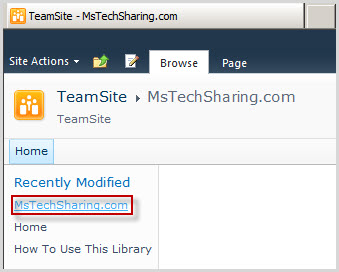
Step 2: Click Ribbon Icon Edit
Step 3: Add Content Editor Web Part then click to menu trip and choose Edit Web Part
Step 4: Enter path to Text File direct to TextBox or click button … below which it contain your code. Note: Text File is created notepad
Step 5: Before choose path to Text File, you must create it with name CEWPTextFile as
Step 6: Upload CEWPTextFile file to Shared Documents by click “Shared Documents” link
Step 7: Upload file
Step 8: Result, Text File uploaded
Step 9: Back to Tool Part of Content Editor by Click menu trip | Edit Web Part, Copy path to Text File and paste to TextBox
Step 10: You can change title of content editor by Expand Appearance, at Tile enter “CEWP TextFile” and click OK
Step 11: Result as


Article 1: How to create CEWP with HTML Source


Step 1: Open your site | Site Actions | New Page
Step 2: Dialog box appear | enter name MsTechSharing.com then click Create
Step 3: Click Ribbon Icon Save & Close
Step 4: Click Site Actions | Edit page
Step 5: Click tab Insert | Web Part
Step 6: In Categories | choose Media and Content | Content Editor
Step 7: Result, Content Editor added
Step 8: Choose Web Part Content Editor | Click to Menu trip then choose Edit Web Part
Step 9: Result, Tool Part appear but don’t configure on it
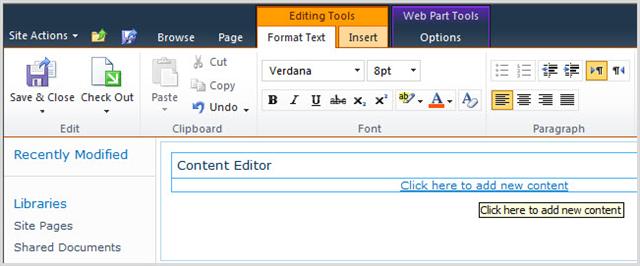
Step 10: Click to “Click here to add new content” link 
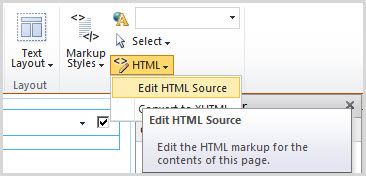
Step 11: Click to Menu trip HTML | Edit HTML Source
Step 12: Editor HTML Source appear and paste script to here “<script>alert(“Hello MSTechSharing.com”);</ script >” then click OK
Step 13: After code javascript, Click button OK on Tool Part
Step 14: Result, you see alert written in Editor HTML Source poupup