ĐÀO TẠO DOANH NGHIỆP : SỞ KHOA HỌC CÔNG NGHỆ TỈNH ĐỒNG NAI

ENTERPRISE TRAINING: DONG NAI DEPARTMENT OF SCIENCE AND TECHNOLOGY.

HÌNH ẢNH TẬP HUẤN LỚP SHAREPOINT WORKFLOW VÀ KIẾN TRÚC SHAREPOINT

PHOTOS OF SHAREPOINT WORKFLOW AND ARCHITECTURE CLASS.

HÌNH ẢNH TẬP HUẤN LỚP SHAREPOINT WORKFLOW VÀ KIẾN TRÚC SHAREPOINT

PHOTOS OF SHAREPOINT WORKFLOW AND ARCHITECTURE CLASS.

Showing posts with label Office 365. Show all posts

Friday, March 2, 2018

Connect SharePoint Online using SharePoint Designer 2013


Login to office 365 >> admin center https://portal.office.com/adminportal#/homepage then navigate to Office 365 > Admin  >  Admin Center  > SharePoint  > Settings . At custom script allow all option

Install SharePoint Online Management then open it as administrator then input the command
Connect-SPOService -Url https://<youradmindomain>.sharepoint.com -credential admin@<yourdomain>.onmicrosoft.com
-Url  : Pass Sharepoint Online site url.
-Credential : Admin user Name/ Password (It will prompt screen for enter password).

Example:
Connect-SPOService -Url https://bbv2016-admin.sharepoint.com -credential hungdo@bbv2016.onmicrosoft.com
If have no any error, continue enter the command:
Set-SPOSite -Identity https://<yoursitecollection>.sharepoint.com -DenyAddAndCustomizePages $false
Example: Set-SPOSite -Identity https://bbv2016.sharepoint.com -DenyAddAndCustomizePages $false
Access to your site collection >> Site settings >> under Site Collection Administration then click to SharePoint Designer Settings
Check to all checkbox if one of them not selected
Download SharePoint designer 2013 then install then open it >> Open SharePoint Site >> enter your SharePoint site (https://bbv2016.sharepoint.com), type your email
And type your password
You will see error appear if you did not add your site to trust site of internet explorer setting
Open Internet explorer >> setting >> internet options >> security tab >> click on Trust sites and add your site
Reopen SharePoint designer 2013 then connect again, it should be successful
Finished


Friday, October 6, 2017

Connect SharePoint Online using SharePoint Designer 2013

1    1.  Login to office 365 >> admin center https://portal.office.com/adminportal#/homepage then navigate to Office 365 > Admin  >  Admin Center  > SharePoint  > Settings . At custom script allow all option

1    2.       Download SharePoint Online Management Shell at this link: https://www.microsoft.com/en-us/download/details.aspx?id=35588&751be11f-ede8-5a0c-058c-2ee190a24fa6=True


1    3.       Install SharePoint Online Management then open it as administrator then input the command
Connect-SPOService -Url https://<youradmindomain>.sharepoint.com -credential admin@<yourdomain>.onmicrosoft.com
-Url  : Pass Sharepoint Online site url.
-Credential : Admin user Name/ Password (It will prompt screen for enter password).
Example:
            Connect-SPOService -Url https://bbv2016-admin.sharepoint.com -credential hungdo@bbv2016.onmicrosoft.com

1    4.       If have no any error, continue enter the command:

       Set-SPOSite -Identity https://<yoursitecollection>.sharepoint.com -DenyAddAndCustomizePages   $false
       Example: Set-SPOSite -Identity https://bbv2016.sharepoint.com -DenyAddAndCustomizePages $false

1    5.       Access to your site collection >> Site settings >> under Site Collection Administration then click to SharePoint Designer Settings

1    6.       Check to all checkbox if one of them not selected

1    7.       Download SharePoint designer 2013 then install then open it >> Open SharePoint Site >> enter your SharePoint site (https://bbv2016.sharepoint.com), type your email


1    8.       And type your password

1    9.       You will see error appear if you did not add your site to trust site of internet explorer setting

1    10.   Open Internet explorer >> setting >> internet options >> security tab >> click on Trust sites and add your site


1    11.   Reopen SharePoint designer 2013 then connect again, it should be successful
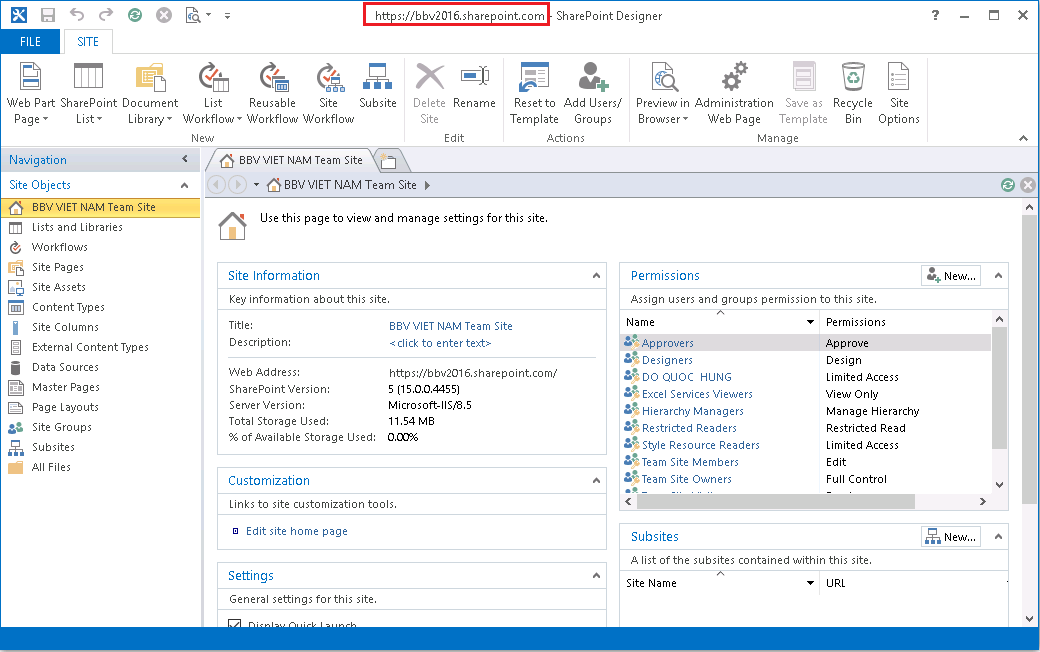
Finished


Register SharePoint 2016 Online (O365 Enterprise E3)

1)      Register SharePoint online (O365 enterprise E3) at below link:


2)      Next, enter your user ID and password


3)      Enter your phone number then click Text me


4)      Your phone will receive code, then enter code then Next

5)      Waiting to finish your registration

6)      Sign-in page: https://portal.office.com/ with your user ID and password. After sign in successful, you will see this page is setting up
 

7)      After finished to set up all, then click to Admin icon
 

8)      Admin center page here, then click to SharePoint under “Admin centers”
 

9)      This is SharePoint central admin, and list all site collections appear
 

10)   Access to first site collection (https://bbv2016.sharepoint.com), it will be displayed like below.
  

11)   Finished.

Monday, December 9, 2013

OFFICE 365 - Sharepoint 2013 Online

OFFICE 365 - Sharepoint 2013 Online
  • Lesson 01: OFFICE 365 Registration (sharepoint 2013 online)
  • Lesson 02: OFFICE 365 Add Domain (sharepoint 2013 online)
  • Lesson 03: OFFICE 365 Create user (sharepoint 2013 online)
  • Lesson 04: Get started with office 365 (sharepoint 2013 online)
  • Lesson 05: Manage Admin site of sharepoint 2013 online
  • Lesson 06: Branding sharepoint 2013 online - custom master page for using design manager
  • Lesson 07: Find Number of Users Currently Logged on to a SharePoint Site (SP 2013 Online)
  • Lesson 08:Sharepoint 2013 Online: Attach file to sharepoint list item by sandbox

Sunday, December 8, 2013

OFFICE 365 Create user

Login to https://portal.microsoftonline.com. At user and groups click to icon +
Input the information then click Next
Configure as follow:
Click Next
Click Create
Click finish
Create user successful
Continue create user from csv file (multi users) by click to icon as follow
Click the link to download sample file
Open file and change your domain
Click browse to the CSV file then click Next
Click Next
Configure as follows then click next:
Click Next
Click Create
Click Close
Here is all users was created successful
Check mail to get username and password by click to Outlook link
Here is user was created as single user creation
Here is user was created as multi user creation
Try to login with “user1@msvndemo37.com”
You must change password for the first login
Have 3 options when use Office 365

Good luck!