| Objectives:
ü Tìm hiểu về kiểu dữ liệu chẳng hạn như: Lookup Field Type, Personal or Group Type
ü Cách tạo column dựa trên sự diễn tả của columns khác
ü Tìm hiểu SharePoint Content Type và SharePoint Site Column
ü Làm việc với Library SharePoint List
ü Cách định nghĩa version cho Library SharePoint List
|
|
Exercise: Có 2 site là Publishing site và Team site
· Exercise 01 : Trở về Top-Level site mặc định của SharePoint
o Click vào link sau :
§ “View All Site Content” hoặc List Type | Create Link
§ Site Action | Create Link
o Trên Custom List category
§ Chọn link “Custom List”
§ Nhập vào tên List là Provinces
§ Nhập vào Description là Provinces of Vietnam
§ Check on là Yes trong option “Display on Quick Launch”
· Click chọn nút “Create”
Exercise 02 : Thay đổi tiêu đề của column
· Chọn Provinces List
· Settings | List Settings |
· Trên Columns
o Click vào Title | Thay đổi
o Maximum number của ký tự là 50
o Nhấn OK
·
o
§ Ho Chi Minh, Ha Noi, Thua Thien Hue
· Nhấn OK

Exercise 03 : Định nghĩa lookup field cho column
· Tiếp tục với Employees List
· Click vào Create Column
o Column Name : Active
o Yes/No | Default : Yes
o Nhấn Save

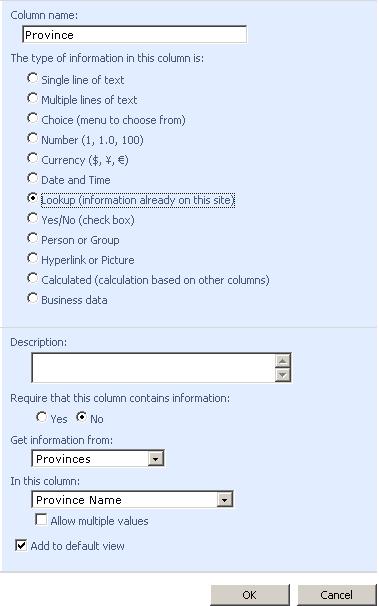
· Click vào Create Column
o Column Name : Province
o Lookup | Get information from (chọn Provinces)
o In this column (chọn Province Name)
o Nhấn Save
· Click vào Create Column
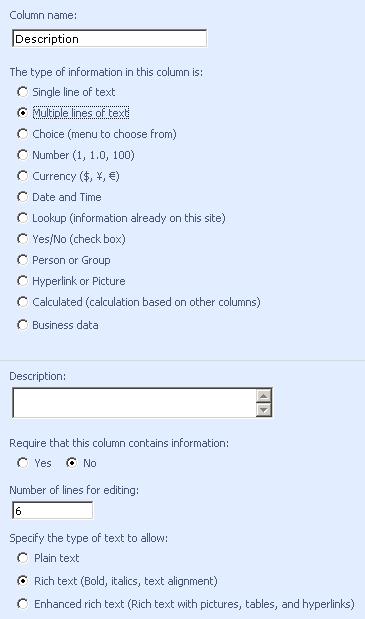
o Column Name : Description
o Multiple lines of text | Multiple lines of text (6)
o Rich text (Bold, italics, text alignment)
o Nhấn Save
· Mở Employees List
o Nhập 1 vài Item vào sharepoint List
Exercise 04 : Tìm hiểu về Calculation cho column kiểu string
· Click vào List Employees
· Click vào Create Column
o Column Name : Full Name | Calculate type
o Kết nối First Name và Last Name
o Sử dụng biểu thức
§ [First Name] &” ”&[ Last Name]
§ Return single line text
o Nhấn Save

Exercise 05: Tìm hiểu về Calculation cho column kiểu number
· Tạo mới List tên là Salary
· Click vào Create Column
o Tên là Employee kiểu dữ liệu Lookup | Get information from (chọn FullName từ Employees)
o Tên BasicSalary kiểu number
o Tên SocialIns kiểu Calculate (5% BasicSalary)

o Tên MedicialIns kiểu Calculate (2% BasicSalary)
o Tên Union kiểu Calculate (1% BasicSalary)
o Tên IncomeTax kiểu Calculate (10% BasicSalary)
Exercise 06: Làm việc với Document Library
· Tiếp tục với Sharepoint Site
· Tạo mới 1 Sharepoint
o Chọn Document Library
o Tên là LeaveForms
o Description là Monthly Leave Forms of Employees
o Nhấn Save
· Upload một vài files
o Chọn LeaveForms document library
o Xem Properties và có thể thay đổi tên file hoặc title
o Nhấn Save
Exercise 07 : Tạo mới folder trên Sharepoint Document
o Tiếp tục với document list library là LeaveForms
§ Add new folder
§ Tên là Des2008
o Upload 1 vài file excels vào folder này
Exercise 08 : Không cho phép tạo folder trên LeaveForms document
· Chọn LeaveForms document library
· Chọn Settings | Document Library Settings
o Trong Advanced Settings
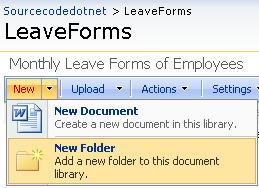
o Check No option cho Display “New Folder” command on the New menu ?
o Nhấn OK
· Click New | và xem có thấy New Folder ?
Exercise 09 : Tìm hiểu về check out và check in document library
· Tiếp tục với document list library là LeaveForms
· Logged với tài khoản quản trị
o Chọn document name | R-Click | Check out document
o Edit properties và thay đổi tên file
· Mở browser lên
o Logged với tài khoản đã thêm vào site
o Chọn check out document và cố
§ Check in document
§ Xem properties và thay đổi tên file
Exercise 10 : Tìm hiểu cách copy file từ windows Explorer đến folder của SharePoint Document library
· Tiếp tục với document list library là LeaveForms
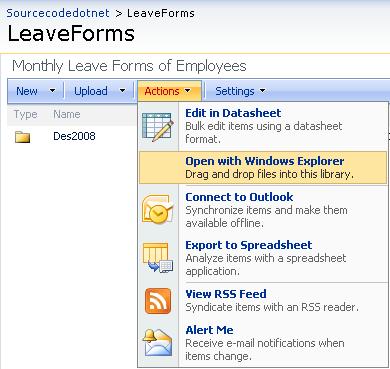
· Click vào Action | Open with window Explorer
o Logged với tài khoản quản trị
§ Chọn folder của LeaveForms
§ Chọn Actions | Open with window Explorer
o Bật folder của PC
o Chọn 1 hoặc 1 vài file và copy sau đó paste vào folder LeaveForms
o Kiểm tra folder và sub folders
· Trở lại LeaveForms List
o Kiểm tra file đã được copy vào đó
Exercise 11 : Làm việc với Image và Hyper Link
· Tạo mới list Sharepoint Picture library
o Tên là MyFriendPhotos
o Description là Photo of My Friends
· Upload 1 vài pictures
o Chọn 1 trong những picture
o Copy URL của picture đã chọn
· Trở lại Employees List
o Click vào New | New Item
o Nhập thông tin của nhân viên
o Trong Description, bạn có thể thêm image = những URL trên
Exercise 12 : Làm việc với Slide Library
· Tạo mới list SharePoint Slide library
o Tên là ExcelSlide
o Description là Slide of Excel Advanced
· Upload slide
o Chọn slide từ pc
o Edit properties và thay đổi
o Presentation, Description
Exercise 13 : Làm việc với KnowledgeBase List
· Tạo mới list SharePoint Wiki library
o Tên là KnowledgeBase
o Description là knowledge of computer science
· Chọn KnowledgeBase
o Chọn link New | New Wiki Page
o Nhập tên là MOSS
o Thêm nội dung : tùy ý
o Sửa và xóa 1 vài nội dung trong đó
o Click vào History và … ?
Exercise 14 : Tìm hiểu cách tạo Sites Content Type
· Tiếp tục với top-level site
· Chọn Site Actions | Site Settings
o Trong Gallaries | chọn link “Site content types”
o Click tạo link và tên là MyContentType
§ Description là: “New Content Type”
§ Chọn parent content type “ List Content Type”
§ Parent content type là : “ Item ”
§ Put this site content type into : MyContentTypeGroup
§ Nhấn OK
o Chọn link MyContentType
§ Thêm từ new site column
§ Định nghĩa 1 vài column
Exercise 15 : Cách sử dụng Sites Content Type
· Trở về home page
· Tạo mới hay sửa SharePoint List đang tồn tại
· Chọn Site Actions | Site Settings
· Trong columns
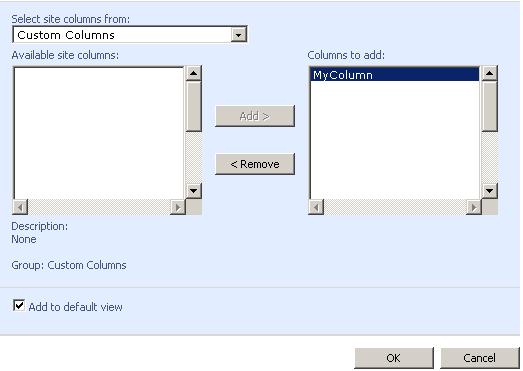
o Chọn “Add from existing SharePoint List”
o Trong “Select site columns from” là Custom columns
o Trong “Available site columns” là MyColumn
o Chọn Add
· Nhấn OK
Exercise 16 : Tìm hiểu cách định nghĩa Sites Column
· Chọn Site Actions | Site Settings
o Trong Gallaries | chọn link “Site columns”
o Click tạo link và tên là MyNewColumn
§ Kiểu dữ liệu là “ Lookup ”
§ Put this site column into : MyNewColumnGroup
§ Get information from là “ Employees ”
§ In this column is FullName
§ Check on “Allow multiple values”
§ Nhấn OK
Exercise 17 : Cách sử dụng custom Sites Column
· Trở về home page
· Tạo mới hay sửa SharePoint List đang tồn tại
· Chọn Site Actions | Site Settings
· Trong columns
o Chọn link “Add from existing site columns”
o Trong “Select site columns from” là MyNewColumnGroup
o Trong “Available site columns” là MyNewColumn
o Chọn Add
· Nhấn OK
Exercise 18 : Versioning của document library
· Tạo mới 1 Document library
o Type là Document library
o Name là “My Documents”
· Chọn “My Documents” document library
o Settings | Document library Settings
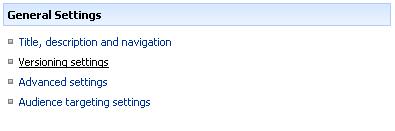
§ Versioning settings
§ check on “Create major versions”
§ Optionally limit the number of versions to retain
§ Check on “Keep the following number of major versions”
§ Nhập vào số 3
· Upload 1 vài file
o Edit và modify
Exercise 19 : Tìm hiểu thêm về document library
· Tạo mới 1 Document library
o Type là Document library
o Name là “Account Documents”
· Chọn “Account Documents” list
o Settings | Document library Settings
§ Versioning settings | check on “Create major and minor (draft) versions ”
§ Optionally limit the number of versions to retain
§ Check on “Keep the following number of major versions”
§ Nhập vào số 3
§ Check on “Keep draft for the following number of major versions”
§ Nhập vào số 5
· Upload 1 vài file
o Edit và modify
o Kiểm tra version của document
 |