ĐÀO TẠO DOANH NGHIỆP : SỞ KHOA HỌC CÔNG NGHỆ TỈNH ĐỒNG NAI

ENTERPRISE TRAINING: DONG NAI DEPARTMENT OF SCIENCE AND TECHNOLOGY.

HÌNH ẢNH TẬP HUẤN LỚP SHAREPOINT WORKFLOW VÀ KIẾN TRÚC SHAREPOINT

PHOTOS OF SHAREPOINT WORKFLOW AND ARCHITECTURE CLASS.

HÌNH ẢNH TẬP HUẤN LỚP SHAREPOINT WORKFLOW VÀ KIẾN TRÚC SHAREPOINT

PHOTOS OF SHAREPOINT WORKFLOW AND ARCHITECTURE CLASS.

Monday, March 5, 2012

Part 3: Create Content Type Using Visual Studio 2010


1.      Mở VS 2010 chọn File | New Project | Visual C# | SharePoint | 2010 | Empty SharePoint Project đặt tên QuocHungContentType
2.      Hộp thoại SharePoint Customization xuất hiện chọn radio Deploy as a farm solution và chọn Finish
3.      Click phải vào Project  Add | New Item
4.      Chọn  Visual C# | SharePoint | 2010 | Content Type và đặt tên MyContentType  nhấn nút Add
5.      Hộp thoại SharePoint Customization xuất hiện chọn Item trong DropdownList và nhấn Finish
6.      Giao diện như sau
7.      Bạn đổi chỉnh sửa tập tin Elements.xml thêm 3  Fields vào sau thẻ mở Elements và trước thẻ mở ContentType

<?xml version="1.0" encoding="utf-8"?>
<Elements xmlns="http://schemas.microsoft.com/sharepoint/">
  <Field ID="{A57B3F82-A8AE-4967-9041-F197560D8FB6}"
        Type="Text"
        Required="TRUE"
        DisplayName="My Key"
        Name="MyKey"
        Indexed="TRUE"
        EnforceUniqueValues="TRUE" />
  <Field ID="{E1804FDB-ADB6-42B2-B12C-10E218614DCC}"
      Type="Note"
      Required="FALSE"
      DisplayName="My Value"
      Name="MyValue" />
  <Field ID="{2CD6305F-F85C-4149-8406-9A0F8AD802FA}"
      Type="Text"
      Required="FALSE"
      DisplayName="My Description"
      Name="MyDescription" />
  <!-- Parent ContentType: Item (0x01) -->
  <ContentType ID="0x0100d7dfe23cc89a42f6b82a2f06c7adf1b5"
               Name="QuocHungContentType - MyContentType"
               Group="Custom Content Types"
               Description="My Content Type"
               Inherits="TRUE"
               Version="0">
    <FieldRefs>
    </FieldRefs>
  </ContentType>
</Elements>

8.      Click phải lên project | chon Deploy
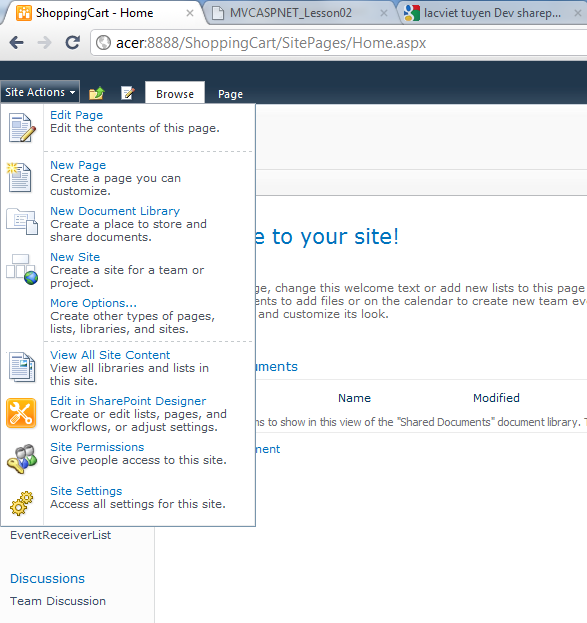
9.      Mở site | chọn Site Actions | Site Settings
10.   Dưới mục Gallaries chọn Sites Content Types
11.   Trong ngăn chứa Custom Content Types bạn thấy QuocHungContentType – MyContentType
12.   Mở List bất kỳ chọn List Settings
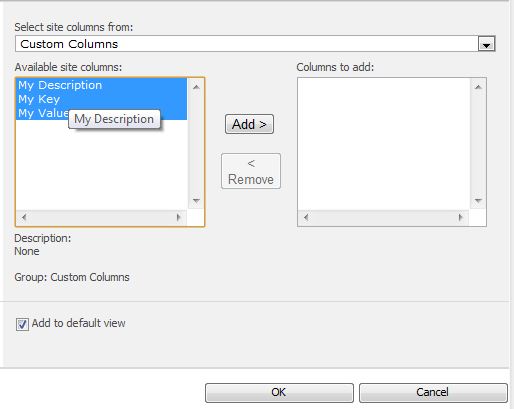
13.   Bạn chọn Add from existing  site columns
14.   Trong mục  Select site columns from bạn chọn Custom Columns
15.   Bạn sẽ thấy 3 Field được tạo trong tâp tin Elements.xml trong khung chứa Available site columns
Part 4: Create Event Receiver Using Visual Studio 2010


 1.       Tạo mới 1 Custom List Tên EventReceiverList với các Columns sau:
a.       Đổi column Title thành EmployeeID
b.      Tạo mới Column tên FirstName
c.       Tạo mới Column tên LastName
d.      Tạo mới Column tên FullName
2.       Mở VS 2010 chọn File | New Project | Visual C# | SharePoint | 2010 | Empty SharePoint Project đặt tên QuocHungEventReceiver
3.       Hộp thoại SharePoint Customization xuất hiện chọn radio Deploy as a farm solution và chọn Finish
4.       Click phải vào Project  Add | New Item | Visual C# | SharePoint | 2010 | EventReceiver và đặt tên EmployeeEventReceiver nhấn nút Add
5.       Hộp thoại xuất hiện:
a.        Mục  What type of event receiver do you want ? chọn List Item Event,
b.      Mục What item should be the event source ? chọn Custom List
c.       Mục Handle the follow events chọn An item is item added
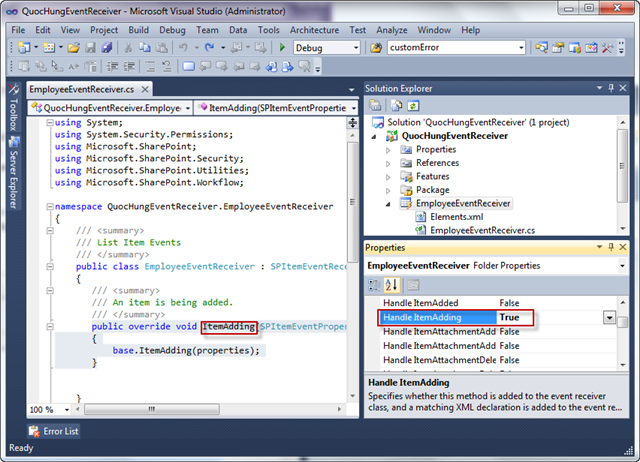
6.       Giao diện như sau
7.       Bạn thấy phương thức ItemAdding trong class EmployeeEventReceiver.cs thì tương ứng với nó cũng có 1 thuộc tính Handle ItemAdding = true trong cửa sổ thuộc tính của EmployeeEventReceiver như hình
8.       Bạn mở tập tin Elements.xml bạn sẽ thấy code xml được generate ra như sau
9.       Bậy giờ bạn comment phương thức ItemAdding thì lập tức thuộc tính Handle ItemAdding trong cửa sổ thuộc tính của EmployeeEventReceiver  sẽ set lại là False
10.   Bạn vào lại cửa sổ thuộc tính của EmployeeEventReceiver (click phải vào EmployeeEventReceiver  chọn properties)   bạn chọn Handle ItemAdded và set là true tự động phương thức được generate ra
11.   Mở tập tin Elements.xml và thấy code xml được generate ra với 1 Event mới là ItemAdded
12.   Trong phương thức ItemAdded bạn khai báo code như sau:
using System;
using System.Security.Permissions;
using Microsoft.SharePoint;
using Microsoft.SharePoint.Security;
using Microsoft.SharePoint.Utilities;
using Microsoft.SharePoint.Workflow;

namespace QuocHungEventReceiver.EmployeeEventReceiver
{
    /// <summary>
    /// List Item Events
    /// </summary>
    public class EmployeeEventReceiver : SPItemEventReceiver
    {
        /// <summary>
        /// An item was added
        /// </summary>
       //public override void ItemAdding(SPItemEventProperties properties)
       //{
       //    base.ItemAdding(properties);
       //}
        public override void ItemAdded(SPItemEventProperties properties)
        {
            if (properties.ListTitle=="EventReceiverList")
            {
                SPItem employee = properties.ListItem;
                string employeeID = Convert.ToString(employee["Title"]);
                if (employeeID == "S0002")
                {
                    employee["FullName"] = employee["FirstName"] + " " +
                        employee["LastName"] + " (S0002)";
                }
                else
                {
                    employee["FullName"] = employee["FirstName"] + " " +
                        employee["LastName"];
                }
                employee.Update();
            }
            base.ItemAdded(properties);
        }
    }
}


13.   Deploy project
14.   Mở Sharepoint Site với List EventReceiver và Add New Item nhập EmployeeID là S0002,… (đừng nhập FullName)
15.   Kết quả bạn sẽ thấy EventReceiver cho sự kiện đã thêm mới tự động kết nối FirstName và LastName cộng với chuỗi (S0002): nghĩa là điều kiện đúng như trên code
16.   Add New Item lần nữa và  nhập EmployeeID là E0002,… (đừng nhập FullName)
17.   Kết quả bạn sẽ thấy EventReceiver cho sự kiện đã thêm mới tự động kết nối FirstName và LastName nhưng không cộng với chuỗi (S0002): nghĩa là điều kiện sai như trên code
18.   Như vậy các bạn đã tạo thành công 1 EventReceiver rồi nhé!!!!!!