ĐÀO TẠO DOANH NGHIỆP : SỞ KHOA HỌC CÔNG NGHỆ TỈNH ĐỒNG NAI

ENTERPRISE TRAINING: DONG NAI DEPARTMENT OF SCIENCE AND TECHNOLOGY.

HÌNH ẢNH TẬP HUẤN LỚP SHAREPOINT WORKFLOW VÀ KIẾN TRÚC SHAREPOINT

PHOTOS OF SHAREPOINT WORKFLOW AND ARCHITECTURE CLASS.

HÌNH ẢNH TẬP HUẤN LỚP SHAREPOINT WORKFLOW VÀ KIẾN TRÚC SHAREPOINT

PHOTOS OF SHAREPOINT WORKFLOW AND ARCHITECTURE CLASS.

Sunday, September 22, 2013

Building MVP Pattern

How to build MVP Pattern for sharepoint, download project at here
Section 1: Creating Solution, Project, Folder and class in folder

Create new solution in visual studio 2010 with name is MVPPatternInSharepoint

Right click to solution | Add new project | Sharepoint | Empty sharepoint project with name is MVPPatternInSharepoint.Web

Deploy as a farm solution

Right click to MVPPatternInSharepoint.Web project | Add new item| Visual Web Part with name is Login

Design User Interface as follows:

Source html:
<style type="text/css">
    .style1
    {
        width: 40%;
    }
</style>

<table class="style1">
    <tr>
        <td colspan="2" style="text-align: center">
            Welcome to mstechsharing.blogspot.com</td>
    </tr>
    <tr>
        <td>
            Username::</td>
        <td>
            <asp:TextBox ID="txtUserName" runat="server"></asp:TextBox>
        </td>
    </tr>
    <tr>
        <td>
            Password</td>
        <td>
            <asp:TextBox ID="txtPassword" runat="server"></asp:TextBox>
        </td>
    </tr>
    <tr>
        <td>
            &nbsp;</td>
        <td>
            <asp:Button ID="btnLogin" runat="server" onclick="btnLogin_Click"
                Text=" Login  " />
            <asp:Button ID="btnCancel" runat="server" Text=" Cancel" />
        </td>
    </tr>
</table>

Right click to solution | Add new project | Visual C# | Windowns | Class Library with name is MVPPatternInSharepoint.Presentation

Delete Class1.cs then Add new 2 folders is IView and Presenter

Right click to IView folder | Add | Class with name is ILoginView

Right click to Presenter folder | Add | Class with name is LoginPresenter

Right click to solution | Add new project | Visual C# | Windowns | Class Library with name is MVPPatternInSharepoint.Contract

Delete Class1.cs then Add new  folders is LoginDTO

Right click to DTO folder | Add | Class with name is LoginDTO

Right click to solution | Add new project | Visual C# | Windowns | Class Library with name is MVPPatternInSharepoint.Model
Delete Class1.cs then Add new  folders is Controllers
Right click to Controllers folder | Add | Class with name is LoginController
Right click to solution | Add new project | Visual C# | Windowns | Class Library with name is MVPPatternInSharepoint.Data
Delete Class1.cs then Add new  folders is SPRepository
Right click to SPRepository folder | Add | Class with name is LoginRepository
Right click to solution | Add new project | Visual C# | Windowns | Class Library with name is MVPPatternInSharepoint.Common then delete Class1.cs  then right click to MVPPatternInSharepoint.Common | Add | Class with name is Common
Note:
Declare Publish for Common class (public class Common), LoginDTO (public class LoginDTO), LoginRepository (public class LoginRepository), LoginController (public class LoginController
), ILoginView (public interface ILoginView), LoginPresenter (public class LoginPresenter)
Then Build your solution
Section 2: Coding follow your functionality, we have login form with 2 textbox and 1 button
Open LoginDTO.cs in project MVPPatternInSharepoint.Contract
Paste this code as follows:
public class LoginDTO
    {
        #region Properties
        public string UserName { get; set; }
        public string Password { get; set; }
        #endregion

        #region Events
        public event EventHandler Login;
        #endregion
    }
The user interface as follows
In project MVPPatternInSharepoint.Presentation, open ILoginView.cs
Paste this code as follows:
public interface ILoginView
    {
        #region Properties
        string UserName { get; set; }
        string Password { get; set; }
        #endregion

        #region Events
        event EventHandler Login;
        #endregion
    }
 The user interface
Build your solution
Open LoginUserControl.ascx.cs >> Add References to MVPPattern.Presentation.dll
Declare NameSpace
using MVPPatternInSharepoint.Presentation.IView;
using MVPPatternInSharepoint.Presentation.Presenter;
using Microsoft.SharePoint;
 declare Inherit to Interface ILoginView
Implement interface

Source code was generate as follows:

Go back to MVPPatternInSharepoint.Presentation
Add Reference to MVPPatternInSharepoint.Contract.dll and MVPPatternInSharepoint.Model.dll
Declare namespace
using MVPPatternInSharepoint.Presentation.IView;
using MVPPatternInSharepoint.Model.Controllers;
using MVPPatternInSharepoint.Contract.DTO;

Paste this code
private ILoginView _view;
        private LoginController _loginController;
        public LoginPresenter(string url, ILoginView view)
        {

        }

User interface as follows
Build your solution
Go back MVPPatternInSharepoint.Web project, Open LoginUserControl.ascx.cs
Replace code in public partial class LoginUserControl : UserControl,ILoginView
 like this
Source code
using System;
using System.Web.UI;
using MVPPattern.Presentation.IView;
using MVPPattern.Presentation.Presenter;
using Microsoft.SharePoint;

namespace MVPPattern.Web.Login
{
    public partial class LoginUserControl : UserControl,ILoginView
    {
        protected void Page_Load(object sender, EventArgs e)
        {
            loginPresenter = new LoginPresenter(SPContext.Current.Web.Url,this);
        }
        LoginPresenter loginPresenter;
        protected void btnLogin_Click(object sender, EventArgs e)
        {
            Login(sender, e);
        }

        public event EventHandler Login;

        public string Password
        {
            get
            {
                return txtPassword.Text;
            }
            set
            {
                txtPassword.Text = value;
            }
        }

        public string UserName
        {
            get
            {
                return txtUserName.Text;
            }
            set
            {
                txtUserName.Text = value;
            }
        }
    }
}

Finish code in LoginUserControl.ascx.cs
Open LoginPresenter.cs like this
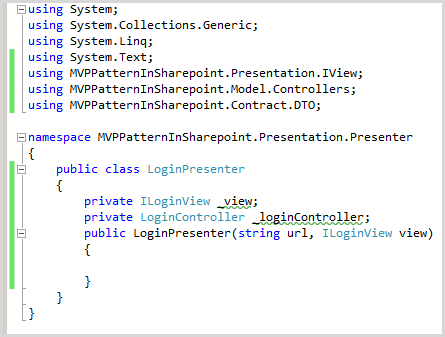
Open LoginController.cs, Add Reference to MVPPatternInSharepoint.Contract.dll and MVPPatternInSharepoint.Data.dll
Paste this code into public class LoginController
Source code:
using System;
using System.Collections.Generic;
using System.Linq;
using System.Text;
using MVPPatternInSharepoint.Contract.DTO;
using MVPPatternInSharepoint.Data.SPRepository;

namespace MVPPatternInSharepoint.Model.Controllers
{
    public class LoginController
    {
        private string _url;
        public LoginController(string url)
        {
            _url = url;
        }
        public void Login(LoginDTO loginDTO)
        {
           
        }
    }
}


Build your Solution
Go back MVPPatternInSharepoint.Presentation project, Open LoginPresenter.cs >>replace this code in public class LoginPresenter Like this
Source code:
using System;
using System.Collections.Generic;
using System.Linq;
using System.Text;
using MVPPatternInSharepoint.Presentation.IView;
using MVPPatternInSharepoint.Model.Controllers;
using MVPPatternInSharepoint.Contract.DTO;

namespace MVPPatternInSharepoint.Presentation.Presenter
{
    public class LoginPresenter
    {
        private ILoginView _view;
        private LoginController _loginController;
        public LoginPresenter(string url, ILoginView view)
        {
            _view = view;
            _loginController = new LoginController(url);
            _view.Login += new EventHandler(_view_Login);
        }

        void _view_Login(object sender, EventArgs e)
        {
            LoginDTO loginDTO = new LoginDTO();
            loginDTO.UserName = _view.UserName;
            loginDTO.Password = _view.Password;
            _loginController.Login(loginDTO);
        }
    }
}

Finish coding in MVPPatternInSharepoint.Presentation project. Build solution
Open project MVPPattern.Data >> add references to MVPPatternInSharepoint.Contract.dll
Declare namespace
using MVPPatternInSharepoint.Contract.DTO;

Paste this code into public class LoginRepository
Source code
using System;
using System.Collections.Generic;
using System.Linq;
using System.Text;
using MVPPatternInSharepoint.Contract.DTO;

namespace MVPPatternInSharepoint.Data.SPRepository
{
    public class LoginRepository
    {
        string _url;
        public LoginRepository(string url)
        {
            _url = url;
        }
        public void Login(LoginDTO loginDTO)
        {
            string userName = loginDTO.UserName;
            string password = loginDTO.Password;
        }
    }
}

Finish coding in MVPPatternInSharepoint.Data project. In Login method, you can get UserName and Password to do something (Select, Insert ….). Build your solution
Go back MVPPatternInSharepoint.Model project, open LoginController.cs, paste this code into method Login
Build your solution. Finish coding in MVPPatternInSharepoint.Model project
Section 3: Add dll of Class Library into Package and deploy webpart
In MVPPatternInSharepoint.Web project double click to Package.package and click to Advanced
Click button Add >> Add Assembly from Project output
Source project choose “MVPPatternInSharepoint.Presentation” and click to “click here to add new item” button
   

Namespace is “MVPPatternInSharepoint.Presentation.IView”
Assembly is “MVPPatternInSharepoint.Presentation”
Continue !!!!
Click button Add >> Add Assembly from Project output.  Source project choose “MVPPatternInSharepoint.Contract” and click to “click here to add new item” button
   

Namespace is “MVPPatternInSharepoint.Contract.DTO”
Assembly is “MVPPatternInSharepoint.Contract”
Continue !!!!
Click button Add >> Add Assembly from Project output.  Source project choose “MVPPatternInSharepoint.Model” and click to “click here to add new item” button
Namespace is “MVPPatternInSharepoint.Model.Controllers”
Assembly is “MVPPatternInSharepoint.Model”
Continue !!!!
Click button Add >> Add Assembly from Project output.  Source project choose “MVPPatternInSharepoint.Data” and click to “click here to add new item” button
Namespace is “MVPPatternInSharepoint.Data.SPRepository”
Assembly is “MVPPatternInSharepoint.Data”
Continue !!!!
Click button Add >> Add Assembly from Project output.  Source project choose “MVPPatternInSharepoint.Common” and click to “click here to add new item” button
Namespace is “MVPPatternInSharepoint.Common”
Assembly is “MVPPatternInSharepoint.Common”
Build your solution
Deploy “MVPPatternInSharepoint.Web” project but we have error “The primary reference "MVPPatternInSharepoint.Presentation" could not be resolved because it has an indirect dependency on the .NET Framework assembly "mscorlib, Version=4.0.0.0, Culture=neutral, PublicKeyToken=b77a5c561934e089" which has a higher version "4.0.0.0" than the version "2.0.0.0" in the current target framework.
 “
I search on google I check Target Framework of MVPPatternInSharepoint.Web is 3.5
But Class Library have Target Framework, so we change it to 3.5
For MVPPatternInSharepoint.Common
We do it for MVPPatternInSharepoint.Contract, MVPPatternInSharepoint.Data, MVPPatternInSharepoint.Model, MVPPatternInSharepoint.Presentation
Then Build solution but we continue get error “Error       2              Assembly generation failed -- Referenced assembly 'MVPPatternInSharepoint.Presentation' does not have a strong name   MVPPatternInSharepoint.Web”
Reason is: Class library don’t have Strong name, we will create for them
For MVPPatternInSharepoint.Common
Right click to MVPPatternInSharepoint.Common >> Signing >> Check to Sign the assembly >> choose New
We do it for MVPPatternInSharepoint.Contract, MVPPatternInSharepoint.Data, MVPPatternInSharepoint.Model, MVPPatternInSharepoint.Presentation
Then Build solution again and get successful
Deploy project sharepoint “MVPPatternInSharepoint.Web”

Add Webpart to sharepoint page successful


Thursday, September 19, 2013

Branding sharepoint 2013 online - custom master page for using design manager

Branding sharepoint 2013 online - custom master page for using design manager
Login your website

Here is home page

Go to Settings >> Site settings >> At "Site Collection Administration" category click to Site collection features >> Active "SharePoint Server Publishing Infrastructure"

Go to Settings >> Site settings >> At "Site Actions" category Manage site features >> Active "SharePoint Server Publishing"

Design the your html like this:

Source html:
<!DOCTYPE html PUBLIC "-//W3C//DTD XHTML 1.0 Transitional//EN" "http://www.w3.org/TR/xhtml1/DTD/xhtml1-transitional.dtd">

<html xmlns="http://www.w3.org/1999/xhtml">
<head>
    <title></title>
</head>
<body style="margin: 0px; padding: 0px; font-family: 'Trebuchet MS',verdana;">
    <table width="100%" style="height: 100%;" cellpadding="10" cellspacing="0" border="0">
        <tr>
            <!-- ============ HEADER SECTION ============== -->
            <td colspan="3" style="height: 100px;" bgcolor="#777d6a">
                <h1 style="color: red">
                    Website MSTechsharing.blogspot.com</h1>
                <h1 style="text-align: right; color: red">
                    Search:
                </h1>
            </td>
        </tr>
        <!-- ============ NAVIGATION BAR SECTION ============== -->
        <tr>
            <td colspan="3" valign="middle" height="30" bgcolor="#a9ae9f">
                <a href="#">Home</a>
            </td>
        </tr>
        <tr>
            <!-- ============ LEFT COLUMN (MENU) ============== -->
            <td width="20%" valign="top" bgcolor="#999f8e">
                <a href="#">Menu link</a><br>
                <a href="#">Menu link</a><br>
                <a href="#">Menu link</a><br>
                <a href="#">Menu link</a><br>
                <a href="#">Menu link</a>
            </td>
            <!-- ============ MIDDLE COLUMN (CONTENT) ============== -->
            <td width="55%" valign="top" bgcolor="#d2d8c7">
                <h2>
                    Page heading</h2>
                A three column layout with header, navigation bar and footer sections. The first,
                second and fourth table rows create the header, navigation bar and footer respectively
                and contain a single table cell each. All these table cells use colspan="3" attribute-value
                pair.
                <br>
                <br>
                The third table row contains three table cells which create the menu column (left),
                the content column (middle) and the extra column (right).<br>
                <br>
            </td>
            <td width="25%" valign="top" bgcolor="#999f8e">
                <a href="#">Menu link</a><br>
                <a href="#">Menu link</a><br>
                <a href="#">Menu link</a><br>
                <a href="#">Menu link</a><br>
                <a href="#">Menu link</a>
            </td>
        </tr>
        <!-- ============ FOOTER SECTION ============== -->
        <tr>
            <td colspan="3" align="center" height="20" bgcolor="#777d6a">
                Copyright ©
            </td>
        </tr>
    </table>
</body>
</html>
Save the html to your drive

Go to Settings >> Site settings >> at "Web Designer Galleries" category click to "Master pages and page layouts" >> Create new Folder with name is DemoMasterPage

Click to DemoMasterPage folder and upload HTMLPage

Go to Settings >> Site settings >> at "Look and Feel" category click to "Design Manager" >> Click to "4. Edit Master Pages"

Click to "Convert an HTML file to a SharePoint master page"

Choose folder DemoMasterPage

Choose HTMLPage.htm then click Insert

After convert successfull, the status is Conversion successful then click to "Conversion successful"

This is preview page

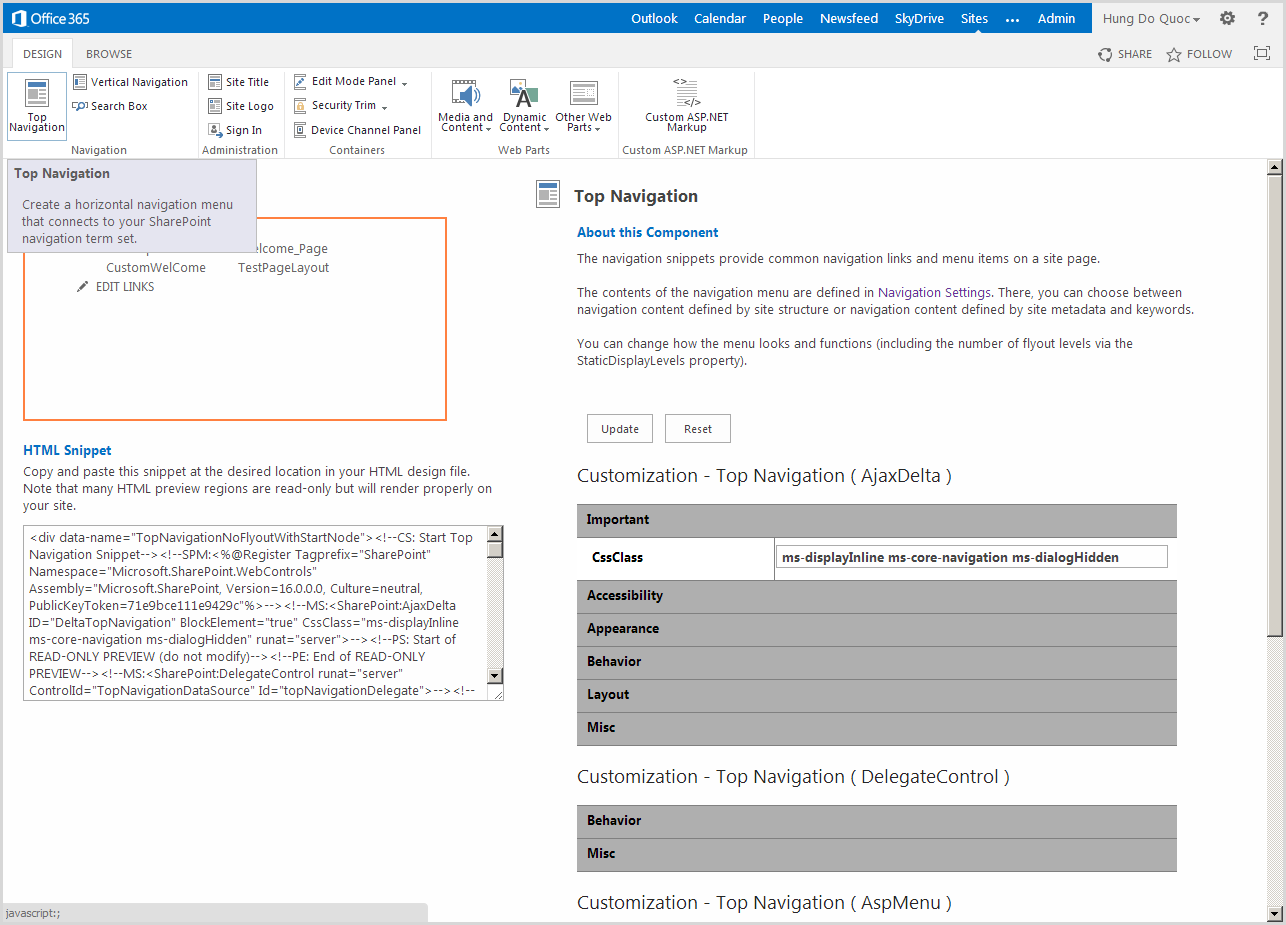
Click to Snippets to see all controls like: TopNavigation, Search box, Security Trim, Site logo...

Here is TopNavigation

Click to "Search Box" you will see HTML Snippet (Copy it then paste into your page => i will guide later)

Now Open Sharepoint designer and Edit page HTMLPage.htm (Open SPD >>at left panel click to Master Pages >> at main panel click to DemoMasterPage folder)

Check out and Edit File in Advanced Mode

Here is html page after converted


Cut this code and paste to nodepad (we use it to design page layout)

<!-- ============ LEFT COLUMN (MENU) ============== -->
                        <td width="20%" valign="top" bgcolor="#999f8e">
                            <a href="#">Menu link
                            </a>
                            <br />
                            <a href="#">Menu link
                            </a>
                            <br />
                            <a href="#">Menu link
                            </a>
                            <br />
                            <a href="#">Menu link
                            </a>
                            <br />
                            <a href="#">Menu link
                            </a>
                        </td>
                        <!-- ============ MIDDLE COLUMN (CONTENT) ============== -->
                        <td width="55%" valign="top" bgcolor="#d2d8c7">
                            <h2>
                    Page heading
                            </h2>

                A three column layout with header, navigation bar and footer sections. The first,
                second and fourth table rows create the header, navigation bar and footer respectively
                and contain a single table cell each. All these table cells use colspan="3" attribute-value
                pair.
                                            <br />
                            <br />

                The third table row contains three table cells which create the menu column (left),
                the content column (middle) and the extra column (right).                            <br />
                            <br />
                        </td>
                        <td width="25%" valign="top" bgcolor="#999f8e">
                            <a href="#">Menu link
                            </a>
                            <br />
                            <a href="#">Menu link
                            </a>
                            <br />
                            <a href="#">Menu link
                            </a>
                            <br />
                            <a href="#">Menu link
                            </a>
                            <br />
                            <a href="#">Menu link
                            </a>
                        </td>
Cut this code all "<div data-name="ContentPlaceHolderMain">"

And Paste into <tr></tr>, note: insert <td colspan="3" style="text-align: center"> </td> within <tr></tr>

Here is source after  paste
<?xml version="1.0" encoding="utf-8"?><!--SPG:

This HTML file has been associated with a SharePoint Master Page (.master file) carrying the same name.  While the files remain associated, you will not be allowed to edit the .master file, and any rename, move, or deletion operations will be reciprocated.

To build the master page directly from this HTML file, simply edit the page as you normally would.  Use the Snippet Generator at https://officience.sharepoint.com/_layouts/15/ComponentHome.aspx?Url=https%3A%2F%2Fofficience%2Esharepoint%2Ecom%2F%5Fcatalogs%2Fmasterpage%2FDemoMasterPage%2FHTMLPage%2Emaster to create and customize useful SharePoint entities, then copy and paste them as HTML snippets into your HTML code.   All updates to this file will automatically sync to the associated Master Page.

-->
<!DOCTYPE html PUBLIC "-//W3C//DTD XHTML 1.0 Transitional//EN" "http://www.w3.org/TR/xhtml1/DTD/xhtml1-transitional.dtd"[]>
<html xmlns="http://www.w3.org/1999/xhtml" xmlns:mso="urn:schemas-microsoft-com:office:office" xmlns:msdt="uuid:C2F41010-65B3-11d1-A29F-00AA00C14882">
    <head>
        <meta http-equiv="X-UA-Compatible" content="IE=10" xmlns="" />
        <!--CS: Start Page Head Contents Snippet-->
        <!--SPM:<%@Register Tagprefix="SharePoint" Namespace="Microsoft.SharePoint.WebControls" Assembly="Microsoft.SharePoint, Version=16.0.0.0, Culture=neutral, PublicKeyToken=71e9bce111e9429c"%>-->
        <!--SPM:<%@Register Tagprefix="WebPartPages" Namespace="Microsoft.SharePoint.WebPartPages" Assembly="Microsoft.SharePoint, Version=16.0.0.0, Culture=neutral, PublicKeyToken=71e9bce111e9429c"%>-->
        <!--SID:00 -->
        <meta name="GENERATOR" content="Microsoft SharePoint" xmlns="" />
        <meta http-equiv="Content-type" content="text/html; charset=utf-8" xmlns="" />
        <meta http-equiv="Expires" content="0" xmlns="" />
        <!--MS:<SharePoint:RobotsMetaTag runat="server">-->
        <!--ME:</SharePoint:RobotsMetaTag>-->
        <!--MS:<SharePoint:PageTitle runat="server">-->
            <!--MS:<asp:ContentPlaceHolder id="PlaceHolderPageTitle" runat="server">-->
                <!--MS:<SharePoint:ProjectProperty Property="Title" runat="server">-->
                <!--ME:</SharePoint:ProjectProperty>-->
            <!--ME:</asp:ContentPlaceHolder>-->
        <!--ME:</SharePoint:PageTitle>-->
        <!--MS:<SharePoint:StartScript runat="server">-->
        <!--ME:</SharePoint:StartScript>-->
        <!--MS:<SharePoint:CssLink runat="server" Version="15">-->
        <!--ME:</SharePoint:CssLink>-->
        <!--MS:<SharePoint:CacheManifestLink runat="server">-->
        <!--ME:</SharePoint:CacheManifestLink>-->
        <!--MS:<SharePoint:PageRenderMode runat="server" RenderModeType="Standard">-->
        <!--ME:</SharePoint:PageRenderMode>-->
        <!--MS:<SharePoint:ScriptLink language="javascript" name="core.js" OnDemand="true" runat="server" Localizable="false">-->
        <!--ME:</SharePoint:ScriptLink>-->
        <!--MS:<SharePoint:ScriptLink language="javascript" name="menu.js" OnDemand="true" runat="server" Localizable="false">-->
        <!--ME:</SharePoint:ScriptLink>-->
        <!--MS:<SharePoint:ScriptLink language="javascript" name="callout.js" OnDemand="true" runat="server" Localizable="false">-->
        <!--ME:</SharePoint:ScriptLink>-->
        <!--MS:<SharePoint:ScriptLink language="javascript" name="sharing.js" OnDemand="true" runat="server" Localizable="false">-->
        <!--ME:</SharePoint:ScriptLink>-->
        <!--MS:<SharePoint:ScriptLink language="javascript" name="suitelinks.js" OnDemand="true" runat="server" Localizable="false">-->
        <!--ME:</SharePoint:ScriptLink>-->
        <!--MS:<SharePoint:CustomJSUrl runat="server">-->
        <!--ME:</SharePoint:CustomJSUrl>-->
        <!--MS:<SharePoint:SoapDiscoveryLink runat="server">-->
        <!--ME:</SharePoint:SoapDiscoveryLink>-->
        <!--MS:<SharePoint:AjaxDelta id="DeltaPlaceHolderAdditionalPageHead" Container="false" runat="server">-->
            <!--MS:<asp:ContentPlaceHolder id="PlaceHolderAdditionalPageHead" runat="server">-->
            <!--ME:</asp:ContentPlaceHolder>-->
            <!--MS:<SharePoint:DelegateControl runat="server" ControlId="AdditionalPageHead" AllowMultipleControls="true">-->
            <!--ME:</SharePoint:DelegateControl>-->
            <!--MS:<asp:ContentPlaceHolder id="PlaceHolderBodyAreaClass" runat="server">-->
            <!--ME:</asp:ContentPlaceHolder>-->
        <!--ME:</SharePoint:AjaxDelta>-->
        <!--MS:<SharePoint:CssRegistration Name="Themable/corev15.css" runat="server">-->
        <!--ME:</SharePoint:CssRegistration>-->
        <!--MS:<SharePoint:AjaxDelta id="DeltaSPWebPartManager" runat="server">-->
            <!--MS:<WebPartPages:SPWebPartManager runat="server">-->
            <!--ME:</WebPartPages:SPWebPartManager>-->
        <!--ME:</SharePoint:AjaxDelta>-->
        <!--CE: End Page Head Contents Snippet-->
        <!--DC:-->
        <!--[if gte mso 9]><xml>
<mso:CustomDocumentProperties>
<mso:ContentTypeId msdt:dt="string">0x0101000F1C8B9E0EB4BE489F09807B2C53288F0054AD6EF48B9F7B45A142F8173F171BD10003D357F861E29844953D5CAA1D4D8A3A</mso:ContentTypeId>
<mso:HtmlDesignAssociated msdt:dt="string">1</mso:HtmlDesignAssociated>
<mso:HtmlDesignFromMaster msdt:dt="string"></mso:HtmlDesignFromMaster>
<mso:HtmlDesignConversionSucceeded msdt:dt="string">True</mso:HtmlDesignConversionSucceeded>
<mso:HtmlDesignStatusAndPreview msdt:dt="string">https://officience.sharepoint.com/_catalogs/masterpage/DemoMasterPage/HTMLPage.htm, Conversion successful.</mso:HtmlDesignStatusAndPreview>
</mso:CustomDocumentProperties>
</xml><![endif]-->
    </head>
    <body style="margin: 0px; padding: 0px; font-family: 'Trebuchet MS',verdana;">
        <!--CS: Start Ribbon Snippet-->
        <!--SPM:<%@Register Tagprefix="SharePoint" Namespace="Microsoft.SharePoint.WebControls" Assembly="Microsoft.SharePoint, Version=16.0.0.0, Culture=neutral, PublicKeyToken=71e9bce111e9429c"%>-->
        <!--SPM:<%@Register Tagprefix="wssucw" TagName="Welcome" Src="~/_controltemplates/15/Welcome.ascx"%>-->
        <!--MS:<SharePoint:SPSecurityTrimmedControl runat="server" HideFromSearchCrawler="true" EmitDiv="true">-->
            <div id="TurnOnAccessibility" style="display:none" class="s4-notdlg noindex" xmlns="">
                <a id="linkTurnOnAcc" href="#" class="ms-accessible ms-acc-button" onclick="SetIsAccessibilityFeatureEnabled(true);UpdateAccessibilityUI();document.getElementById('linkTurnOffAcc').focus();return false;">
                    <!--MS:<SharePoint:EncodedLiteral runat="server" text="&lt;%$Resources:wss,master_turnonaccessibility%&gt;" EncodeMethod="HtmlEncode">-->
                    <!--ME:</SharePoint:EncodedLiteral>-->
                </a>
            </div>
            <div id="TurnOffAccessibility" style="display:none" class="s4-notdlg noindex" xmlns="">
                <a id="linkTurnOffAcc" href="#" class="ms-accessible ms-acc-button" onclick="SetIsAccessibilityFeatureEnabled(false);UpdateAccessibilityUI();document.getElementById('linkTurnOnAcc').focus();return false;">
                    <!--MS:<SharePoint:EncodedLiteral runat="server" text="&lt;%$Resources:wss,master_turnoffaccessibility%&gt;" EncodeMethod="HtmlEncode">-->
                    <!--ME:</SharePoint:EncodedLiteral>-->
                </a>
            </div>
        <!--ME:</SharePoint:SPSecurityTrimmedControl>-->
        <div id="ms-designer-ribbon" xmlns="">
            <!--SID:02 {Ribbon}-->
            <!--PS: Start of READ-ONLY PREVIEW (do not modify) --><div class="DefaultContentBlock" style="background:rgb(0, 114, 198); color:white; width:100%; padding:8px; height:64px; overflow:hidden;">The SharePoint ribbon will be here when your file is either previewed on or applied to your site.</div><!--PE: End of READ-ONLY PREVIEW -->
        </div>
        <!--MS:<SharePoint:SPSecurityTrimmedControl runat="server" AuthenticationRestrictions="AnonymousUsersOnly">-->
            <!--MS:<wssucw:Welcome runat="server" EnableViewState="false">-->
            <!--ME:</wssucw:Welcome>-->
        <!--ME:</SharePoint:SPSecurityTrimmedControl>-->
        <!--CE: End Ribbon Snippet-->
        <div id="s4-workspace" xmlns="">
            <div id="s4-bodyContainer">
                <table width="100%" style="height: 100%;" cellpadding="10" cellspacing="0" border="0" xmlns="http://www.w3.org/1999/xhtml">
                    <tr>
                        <!-- ============ HEADER SECTION ============== -->
                        <td colspan="3" style="height: 100px;" bgcolor="#777d6a">
                            <h1>
                    Website MSTechsharing.blogspot.com
                            </h1>
                            <h1 style="text-align: right">
                    Search:
               
                            </h1>
                        </td>
                    </tr>
                    <!-- ============ NAVIGATION BAR SECTION ============== -->
                    <tr>
                        <td colspan="3" valign="middle" height="30" bgcolor="#a9ae9f">
                            <a href="#">Home
                            </a>
                        </td>
                    </tr>
                    <tr>
                    <td colspan="3" style="text-align: center">
                       <div data-name="ContentPlaceHolderMain">
                   <!--CS: Start PlaceHolderMain Snippet-->
                   <!--SPM:<%@Register Tagprefix="SharePoint" Namespace="Microsoft.SharePoint.WebControls" Assembly="Microsoft.SharePoint, Version=16.0.0.0, Culture=neutral, PublicKeyToken=71e9bce111e9429c"%>-->
                   <!--MS:<SharePoint:AjaxDelta ID="DeltaPlaceHolderMain" IsMainContent="true" runat="server">-->
                       <!--MS:<asp:ContentPlaceHolder ID="PlaceHolderMain" runat="server">-->
                           <div class="DefaultContentBlock" style="border:medium black solid; background:yellow; color:black; margin:20px; padding:10px;">
           This div, which you should delete, represents the content area that your Page Layouts and pages will fill. Design your Master Page around this content placeholder.
     
                           </div>
                       <!--ME:</asp:ContentPlaceHolder>-->
                   <!--ME:</SharePoint:AjaxDelta>-->
                   <!--CE: End PlaceHolderMain Snippet-->
               </div>
               </td>
                    </tr>
                    <!-- ============ FOOTER SECTION ============== -->
                    <tr>
                        <td colspan="3" align="center" height="20" bgcolor="#777d6a">
                Copyright ©
           
                        </td>
                    </tr>
                </table>
               
            </div>
        </div>
    </body>
</html>
The user interface

Now we will insert the search box into my master page => go back "Design Manager: Edit Master Pages" and click to status "Conversion successfull" of HTMLPage

Click to the Snippets

Click to the Search Box then copy the HTML Snippet

Go back to sharepoint designer at HTMLPage and paste this code to After Search text

Save page and check in

Go back "Design Manager: Edit Master Pages" you will see Approvel Status is Approved

Now we create the Page Layout for Master Page  >> Go back SPD create Page Layout

input url name ans Title

User interface bellow as:

Copy code bellow and paste within PlaceHolderMain

Source here
<%@ Page language="C#"   Inherits="Microsoft.SharePoint.Publishing.PublishingLayoutPage,Microsoft.SharePoint.Publishing,Version=16.0.0.0,Culture=neutral,PublicKeyToken=71e9bce111e9429c" meta:webpartpageexpansion="full" meta:progid="SharePoint.WebPartPage.Document" %>
<%@ Register Tagprefix="SharePointWebControls" Namespace="Microsoft.SharePoint.WebControls" Assembly="Microsoft.SharePoint, Version=16.0.0.0, Culture=neutral, PublicKeyToken=71e9bce111e9429c" %> <%@ Register Tagprefix="WebPartPages" Namespace="Microsoft.SharePoint.WebPartPages" Assembly="Microsoft.SharePoint, Version=16.0.0.0, Culture=neutral, PublicKeyToken=71e9bce111e9429c" %> <%@ Register Tagprefix="PublishingWebControls" Namespace="Microsoft.SharePoint.Publishing.WebControls" Assembly="Microsoft.SharePoint.Publishing, Version=16.0.0.0, Culture=neutral, PublicKeyToken=71e9bce111e9429c" %> <%@ Register Tagprefix="PublishingNavigation" Namespace="Microsoft.SharePoint.Publishing.Navigation" Assembly="Microsoft.SharePoint.Publishing, Version=16.0.0.0, Culture=neutral, PublicKeyToken=71e9bce111e9429c" %>
<asp:Content ContentPlaceholderID="PlaceHolderPageTitle" runat="server">
<SharePointWebControls:FieldValue id="PageTitle" FieldName="Title" runat="server"/>
</asp:Content>
<asp:Content ContentPlaceholderID="PlaceHolderMain" runat="server">
<table width="100%">
<tr>
<td width="20%"><div class="left-column-area">
   <WebPartPages:WebPartZone runat="server" AllowPersonalization="false" ID="middleZone" FrameType="TitleBarOnly"
   Title="<%$Resources:cms,WebPartZoneTitle_BottomLeft%>" Orientation="Vertical"><ZoneTemplate></ZoneTemplate></WebPartPages:WebPartZone>
   </div></td>
<td width="60%"><div class="splash-top-zone">
<WebPartPages:WebPartZone runat="server" AllowPersonalization="false" ID="TopZone" FrameType="TitleBarOnly"
Title="<%$Resources:cms,WebPartZoneTitle_Top%>" Orientation="Vertical"><ZoneTemplate></ZoneTemplate></WebPartPages:WebPartZone>
</div></td>
<td width="20%"><div class="right-column-area">
   <WebPartPages:WebPartZone runat="server" AllowPersonalization="false" ID="BottomRightZone" FrameType="TitleBarOnly"
   Title="<%$Resources:cms,WebPartZoneTitle_BottomRight%>" Orientation="Vertical"><ZoneTemplate></ZoneTemplate></WebPartPages:WebPartZone>
   </div></td>
 
</tr>
</table>

</asp:Content>
Check in this page

Go back site collection >> Settings >> Site Content >> click to list Page >> Create New Page and choose Page Layout is HTMLPageLayout then click create

Check in that page

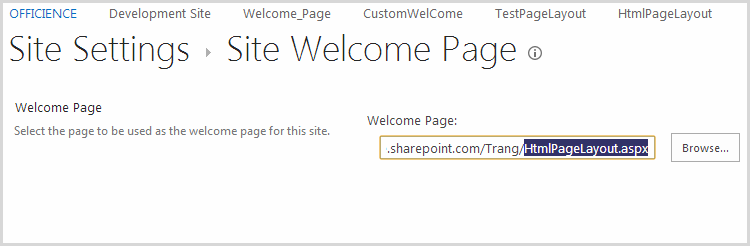
Set that page is Welcome Page >> Go to Settings >> Site Settings >>  At "Look and Feel" category click to "Welcome Page" and paste url of that page to Welcome Page URL

Continue at Site Setting At "Look and Feel" category click to "Master Page" and change master page as follow:

Go to home page

Now we add webpart into page layout >> Go to site setting >> Edit Page then add webpart is content editor (you can design table html and paste to source editor of content editor)

After add webpart, UI as bellow:

we see the bottom have issue about css, Designer will edit it
Finish!