ĐÀO TẠO DOANH NGHIỆP : SỞ KHOA HỌC CÔNG NGHỆ TỈNH ĐỒNG NAI

ENTERPRISE TRAINING: DONG NAI DEPARTMENT OF SCIENCE AND TECHNOLOGY.

HÌNH ẢNH TẬP HUẤN LỚP SHAREPOINT WORKFLOW VÀ KIẾN TRÚC SHAREPOINT

PHOTOS OF SHAREPOINT WORKFLOW AND ARCHITECTURE CLASS.

HÌNH ẢNH TẬP HUẤN LỚP SHAREPOINT WORKFLOW VÀ KIẾN TRÚC SHAREPOINT

PHOTOS OF SHAREPOINT WORKFLOW AND ARCHITECTURE CLASS.

Tuesday, October 15, 2013

SharePoint 2010: “Your client does not support opening this list with windows explorer”

SharePoint 2010: “Your client does not support opening this list with windows explorer”

Scenario
We want to open the document library in explorer view
But somehow it’s popping up with the message “Your client does not support opening this list with windows explorer”?
Solution
Use 32 bits IE, because it’s the featured for this browser
If your using windows server 2008, enabled “Desktop Experience” feature

Go back to your document library >> Library tab >> click to Open With Explorer

Copy Folder and file in folder to Explorer

Go back your document library then click f5

Thanks.

Monday, October 14, 2013

Custom properties for visual webpart 2010

Custom properties for visual webpart
You should read 3 article first
http://mstechsharing.blogspot.com/2012/03/lesson-04-webpart-property-and-default.html
http://mstechsharing.blogspot.com/2012/03/lesson-05-more-attribute-and-custom.html
http://mstechsharing.blogspot.com/2012/03/lesson-06-validation-in-webpart-and.html

Create new Visual webpart project


Add new class for toolpart class

Open CustomPropertiesForVisualWebpart.cs and Replace this code
using System.ComponentModel;
using System.Web.UI;
using Microsoft.SharePoint.WebPartPages;

namespace CustomPropertiesForVisualWebpart.CustomPropertiesForVisualWebpart
{
    [ToolboxItemAttribute(false)]
    public class CustomPropertiesForVisualWebpart : WebPart
    {
     
        // Visual Studio might automatically update this path when you change the Visual Web Part project item.
        private const string _ascxPath = @"~/_CONTROLTEMPLATES/CustomPropertiesForVisualWebpart/CustomPropertiesForVisualWebpart/CustomPropertiesForVisualWebpartUserControl.ascx";

        protected override void CreateChildControls()
        {
            CustomPropertiesForVisualWebpartUserControl control = (CustomPropertiesForVisualWebpartUserControl)Page.LoadControl(_ascxPath);
            //Assign value to Attribute of webpart user control
            control.Attributes.Add("DisplayCar", DisplayCar);
            Controls.Add(control);
        }

        #region properties
        public string _value;// public static string _value; (Note: remove static)
        public string Value
        {
            get { return _value; }
            set { _value = value; }
        }

        string displayCar = "1";
        public string DisplayCar
        {
            get { return displayCar; }
            set { displayCar = value; }
        }
        #endregion
        /// <summary>
        /// return all toolpat
        /// </summary>
        /// <returns>return toolpart</returns>
        public override ToolPart[] GetToolParts()
        {
            ToolPart[] allToolParts = new ToolPart[3];
            WebPartToolPart standardToolParts = new WebPartToolPart();
            CustomPropertyToolPart customToolParts = new CustomPropertyToolPart();
            allToolParts[0] = standardToolParts;
            allToolParts[1] = customToolParts;
            allToolParts[2] = new CustomToolPart();
            return allToolParts;
        }
    }
}
Open CustomToolPart and replcae this code
using System.Text;
using System.Web.UI.WebControls;
using Microsoft.SharePoint;
using System.Data;


namespace CustomPropertiesForVisualWebpart.CustomPropertiesForVisualWebpart
{
    public class CustomToolPart : Microsoft.SharePoint.WebPartPages.ToolPart
    {
        #region variable
        /// <summary>
        /// declare variable
        /// </summary>
        Label lblError;
        DropDownList ddlDisplayCar;
        TextBox txtValue;
        #endregion
        /// <summary>
        /// Create Control
        /// </summary>
        protected override void CreateChildControls()
        {
            try
            {
                lblError = new Label();
                Label lblDisplayCar = new Label();
                lblDisplayCar.Text = "Choose display car: <br />";
                ddlDisplayCar = new DropDownList();
                ddlDisplayCar.ID = "ddlDisplayCar";
                ddlDisplayCar.Items.Add(new ListItem("All Cars", "1"));
                ddlDisplayCar.Items.Add(new ListItem("All Cars of Current User", "2"));
                txtValue = new TextBox();

                this.Controls.Add(lblError);
                this.Controls.Add(lblDisplayCar);
                this.Controls.Add(ddlDisplayCar);
                this.Controls.Add(txtValue);
                DisplayDataFromWebpartToToolPart();
            }
            catch (System.Exception ex)
            {
                lblError.Text = ex.Message;
                //You can write log here
            }
        }
        /// <summary>
        /// Display Data From Webpart To ToolPart
        /// </summary>
        private void DisplayDataFromWebpartToToolPart()
        {
            //Display data from webpart to toolpart
            CustomPropertiesForVisualWebpart customPropertiesVisualWP = (CustomPropertiesForVisualWebpart)this.ParentToolPane.SelectedWebPart;
            // DisplayCar
            ListItem currentDisplayCar = ddlDisplayCar.Items.FindByValue(customPropertiesVisualWP.DisplayCar);
            if (null != currentDisplayCar)
            {
                ddlDisplayCar.SelectedValue = currentDisplayCar.Value;
            }

            txtValue.Text = customPropertiesVisualWP.Value;
        }
        /// <summary>
        /// Apply changes when we click button Apply and Ok in toolpart panel
        /// </summary>
        public override void ApplyChanges()
        {
            CustomPropertiesForVisualWebpart customPropertiesVisualWP = (CustomPropertiesForVisualWebpart)this.ParentToolPane.SelectedWebPart;
            customPropertiesVisualWP.DisplayCar = ddlDisplayCar.SelectedValue;
            customPropertiesVisualWP.Value = txtValue.Text;
        }
    }
}
Open CustomPropertiesForVisualWebpartUserControl.ascx and Add 2 Label then open CustomPropertiesForVisualWebpartUserControl.ascx.cs and replcae this code
using System;
using System.Web.UI;
using System.Web.UI.WebControls;
using System.Web.UI.WebControls.WebParts;
namespace CustomPropertiesForVisualWebpart.CustomPropertiesForVisualWebpart
{
    public partial class CustomPropertiesForVisualWebpartUserControl : UserControl
    {
        protected void Page_Load(object sender, EventArgs e)
        {
            lblCarWay1.Text = Convert.ToString(this.Attributes["DisplayCar"]);
            lblCarWay2.Text = CustomPropertiesForVisualWebpart._value;
        }
    }
}
Build and Deploy then add webpart => edit properties webpart


Thursday, October 10, 2013

Attach file to sharepoint list item by sandbox


Sharepoint 2013 Online: Attach file to sharepoint list item by sandbox

Download Project MstechsharingSPO
Hello everybody! Today i post this article with the my pleasure. i found the limitation of sandbox in upload and attach file to list item. It is System.IO namespace, the sandbox code can not read the Path.GetFileName (it inherit from System.IO), so we get filename's value is null.

I thought the solution: attach file using upload file of sharepoint. Moreover, we attach file when we add new item, so we must have the existing item. The final, i create the List "MstechsharingTemp" to store attachment file of each users login to system. When i click attach file, file will be saved into list "MstechsharingTemp" with existing item then when click Post (Save) button, i will store item into my "Mstechsharing" and copy attachment file from "MstechsharingTemp"  list to my list "Mstechsharing".
Here is step by step i did:
Login to sharepoint online site (my case is SPO). Create new list MstechsharingTemp by go to Settings >> Add an app >> choose Custom list template

Continue create the next custom list "Mstechsharing"

Now we create Visual webpart in sandbox solution. we don't have available visual webpart for sandbox, so we must download "SpPowerTools_x86_enu_DeployVSWebpartAsSandbox". Setup it then wait some minutes we will see it by Open visual studio >> New project >> Empty Sharepoint Project with name is MstechsharingSPO

Deploy as Sandbox solution

Right click to project Mstechsharing >> New Item >> choose Visual Web Part (Sandboxed) with name is Mstechsharing

User interface look like

Open MstechsharingSPO.ascx

code here
<%@ Assembly Name="$SharePoint.Project.AssemblyFullName$" %>
<%@ Assembly Name="Microsoft.Web.CommandUI, Version=14.0.0.0, Culture=neutral, PublicKeyToken=71e9bce111e9429c" %>
<%@ Register TagPrefix="SharePoint" Namespace="Microsoft.SharePoint.WebControls"
    Assembly="Microsoft.SharePoint, Version=14.0.0.0, Culture=neutral, PublicKeyToken=71e9bce111e9429c" %>
<%@ Register TagPrefix="Utilities" Namespace="Microsoft.SharePoint.Utilities" Assembly="Microsoft.SharePoint, Version=14.0.0.0, Culture=neutral, PublicKeyToken=71e9bce111e9429c" %>
<%@ Import Namespace="Microsoft.SharePoint" %>
<%@ Register TagPrefix="WebPartPages" Namespace="Microsoft.SharePoint.WebPartPages"
    Assembly="Microsoft.SharePoint, Version=14.0.0.0, Culture=neutral, PublicKeyToken=71e9bce111e9429c" %>
<%@ Control Language="C#" AutoEventWireup="true" CodeBehind="Mstechsharing.ascx.cs"
    Inherits="MstechsharingSPO.Mstechsharing.Mstechsharing" %>
<script type="text/javascript">
    function callback() {
        alert('document uploaded');
    }
    function openPopup() {
        var elem = document.getElementById('<%= hdnURL.ClientID %>');
        var options = {
            url: elem.value,
            title: 'Modal Dialog',
            allowMaximize: false,
            showClose: true,
            width: 500,
            height: 200,
            dialogReturnValueCallback: callback
        }
        SP.UI.ModalDialog.showModalDialog(options);
        return false;
    }
</script>
Title:
<asp:TextBox ID="txtObject" runat="server" Width="300px"></asp:TextBox>
<br />
&nbsp;&nbsp;&nbsp;&nbsp;&nbsp;&nbsp;&nbsp;
<input type="button" value="Attach file" id="btnAttachFile" runat="server" onclick="return SP.SOD.executeFunc('sp.ui.dialog.js', 'SP.UI.ModalDialog.showModalDialog', function () { openPopup(); });"
    disabled="disabled" style="width: 128px" />
<input type="hidden" runat="server" id="hdnURL" />
<asp:Button ID="btnSave" runat="server" Text=" Save into Mstechsharing "
    Width="170px" onclick="btnSave_Click" />
<asp:HiddenField ID="hdnItemID" runat="server" />


Open MstechsharingSPO.ascx.cs and Copy code into Page_Load.
Note: Change you ListId is very important

Code here
protected void Page_Load(object sender, EventArgs e)
        {
            if (!Page.IsPostBack)
            {
                int itemID = DeleteExistingAttachments();

                if (itemID == 0)
                {
                    using (SPSite site = new SPSite(SPContext.Current.Web.Url.ToString()))
                    {
                        using (SPWeb web = site.OpenWeb())
                        {
                            web.AllowUnsafeUpdates = true;
                            SPList SPLData = web.Lists["MstechsharingTemp"];
                            SPListItem item = SPLData.Items.Add();
                            item.Update();
                            hdnItemID.Value = item.ID.ToString();
                        }
                    }
                }
                else
                {
                    hdnItemID.Value = itemID.ToString();
                }
            }
            string urlFormat = "/_layouts/AttachFile.aspx?ListId={0}&ItemID={1}";
            string url = string.Format(urlFormat, "{E4D0A1CC-CEE0-4FF1-98DE-19B5D2AF943F}", hdnItemID.Value);
            hdnURL.Value = url;
            btnAttachFile.Disabled = false;
        }

Continue copy 2 method DeleteExistingAttachments() and CopyAttachments below Page_Load


code here
private int DeleteExistingAttachments()
        {
            int itemId = 0;
            // Follow the steps to delete list item attachment from your sharepoint list.
            // Create new instance of site with your current application
            using (SPSite site = new SPSite(SPContext.Current.Web.Url.ToString()))
            {
                // Create new web instance and open web for current application
                using (SPWeb web = site.OpenWeb())
                {
                    web.AllowUnsafeUpdates = true;
                    // Create new list object and get your list
                    SPList SPLData = web.Lists["MstechsharingTemp"];
                    // Create new query object to hold query which fetches list item of the list
                    SPQuery spMyQuery = new SPQuery();
                    // Assign query with value to it in ID field of the list item
                    spMyQuery.Query = "<Where><Eq><FieldRef Name='Author'/><Value Type='Integer'><UserID Type='Integer' /></Value></Eq></Where>";
                    SPListItemCollection collection = SPLData.GetItems(spMyQuery);
                    if (collection.Count > 0)
                    {
                        SPListItem listItem = collection[0];
                        itemId = Convert.ToInt32(listItem["ID"]);
                        if (listItem.Attachments.Count > 0)
                        {
                            foreach (string fileName in listItem.Attachments)
                            {
                                listItem.Attachments.Delete(fileName);
                                listItem.Update();
                            }
                        }
                    }
                    web.AllowUnsafeUpdates = false;
                }

            }
            return itemId;
        }
        /// <summary>
        ///
        /// </summary>
        /// <param name="sourceItem"></param>
        /// <param name="targetItem"></param>
        private void CopyAttachments(SPListItem sourceItem, SPListItem targetItem)
        {
            try
            {
                //get the folder with the attachments for the source item
                SPFolder sourceItemAttachmentsFolder =
                    sourceItem.Web.Folders["Lists"].SubFolders[sourceItem.ParentList.Title].SubFolders["Attachments"].SubFolders[sourceItem.ID.ToString()];
                //Loop over the attachments, and add them to the target item
                foreach (SPFile file in sourceItemAttachmentsFolder.Files)
                {
                    byte[] binFile = file.OpenBinary();
                    targetItem.Attachments.AddNow(file.Name, binFile);
                }
            }
            catch { }
            finally
            {
                sourceItem.Web.Dispose();
            }
        }

Double click to button Save and paste this code

Code here
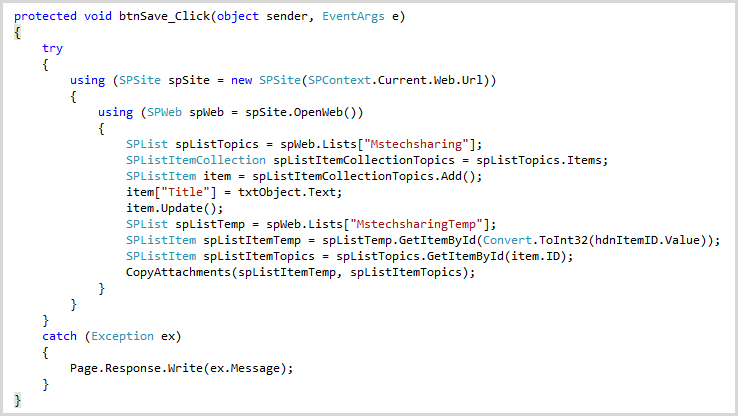
 protected void btnSave_Click(object sender, EventArgs e)
        {
            try
            {
                using (SPSite spSite = new SPSite(SPContext.Current.Web.Url))
                {
                    using (SPWeb spWeb = spSite.OpenWeb())
                    {
                        SPList spListTopics = spWeb.Lists["Mstechsharing"];
                        SPListItemCollection spListItemCollectionTopics = spListTopics.Items;
                        SPListItem item = spListItemCollectionTopics.Add();
                        item["Title"] = txtObject.Text;
                        item.Update();
                        SPList spListTemp = spWeb.Lists["MstechsharingTemp"];
                        SPListItem spListItemTemp = spListTemp.GetItemById(Convert.ToInt32(hdnItemID.Value));
                        SPListItem spListItemTopics = spListTopics.GetItemById(item.ID);
                        CopyAttachments(spListItemTemp, spListItemTopics);
                        DeleteExistingAttachments();
                       // Page.Response.Redirect(SPContext.Current.Web.Url);
                    }
                }
            }
            catch (Exception ex)
            {
                Page.Response.Write(ex.Message);
            }
        }
All code
using System;
using System.ComponentModel;
using System.Web.UI;
using System.Web.UI.WebControls;
using System.Web.UI.WebControls.WebParts;
using Microsoft.SharePoint;
using Microsoft.SharePoint.WebControls;

namespace MstechsharingSPO.Mstechsharing
{
    [ToolboxItem(false)]
    public partial class Mstechsharing : System.Web.UI.WebControls.WebParts.WebPart
    {
        protected override void OnInit(EventArgs e)
        {
            base.OnInit(e);
            InitializeControl();
        }

        protected void Page_Load(object sender, EventArgs e)
        {
            if (!Page.IsPostBack)
            {
                int itemID = DeleteExistingAttachments();

                if (itemID == 0)
                {
                    using (SPSite site = new SPSite(SPContext.Current.Web.Url.ToString()))
                    {
                        using (SPWeb web = site.OpenWeb())
                        {
                            web.AllowUnsafeUpdates = true;
                            SPList SPLData = web.Lists["MstechsharingTemp"];
                            SPListItem item = SPLData.Items.Add();
                            item.Update();
                            hdnItemID.Value = item.ID.ToString();
                        }
                    }
                }
                else
                {
                    hdnItemID.Value = itemID.ToString();
                }
            }
            string urlFormat = "/_layouts/AttachFile.aspx?ListId={0}&ItemID={1}";
            string url = string.Format(urlFormat, "{E4D0A1CC-CEE0-4FF1-98DE-19B5D2AF943F}", hdnItemID.Value);
            hdnURL.Value = url;
            btnAttachFile.Disabled = false;
        }

        /// <summary>
        ///
        /// </summary>
        private int DeleteExistingAttachments()
        {
            int itemId = 0;
            // Follow the steps to delete list item attachment from your sharepoint list.
            // Create new instance of site with your current application
            using (SPSite site = new SPSite(SPContext.Current.Web.Url.ToString()))
            {
                // Create new web instance and open web for current application
                using (SPWeb web = site.OpenWeb())
                {
                    web.AllowUnsafeUpdates = true;
                    // Create new list object and get your list
                    SPList SPLData = web.Lists["MstechsharingTemp"];
                    // Create new query object to hold query which fetches list item of the list
                    SPQuery spMyQuery = new SPQuery();
                    // Assign query with value to it in ID field of the list item
                    spMyQuery.Query = "<Where><Eq><FieldRef Name='Author'/><Value Type='Integer'><UserID Type='Integer' /></Value></Eq></Where>";
                    SPListItemCollection collection = SPLData.GetItems(spMyQuery);
                    if (collection.Count > 0)
                    {
                        SPListItem listItem = collection[0];
                        itemId = Convert.ToInt32(listItem["ID"]);
                        if (listItem.Attachments.Count > 0)
                        {
                            foreach (string fileName in listItem.Attachments)
                            {
                                listItem.Attachments.Delete(fileName);
                                listItem.Update();
                            }
                        }
                    }
                    web.AllowUnsafeUpdates = false;
                }

            }
            return itemId;
        }
        /// <summary>
        ///
        /// </summary>
        /// <param name="sourceItem"></param>
        /// <param name="targetItem"></param>
        private void CopyAttachments(SPListItem sourceItem, SPListItem targetItem)
        {
            try
            {
                //get the folder with the attachments for the source item
                SPFolder sourceItemAttachmentsFolder =
                    sourceItem.Web.Folders["Lists"].SubFolders[sourceItem.ParentList.Title].SubFolders["Attachments"].SubFolders[sourceItem.ID.ToString()];
                //Loop over the attachments, and add them to the target item
                foreach (SPFile file in sourceItemAttachmentsFolder.Files)
                {
                    byte[] binFile = file.OpenBinary();
                    targetItem.Attachments.AddNow(file.Name, binFile);
                }
            }
            catch { }
            finally
            {
                sourceItem.Web.Dispose();
            }
        }

        protected void btnSave_Click(object sender, EventArgs e)
        {
            try
            {
                using (SPSite spSite = new SPSite(SPContext.Current.Web.Url))
                {
                    using (SPWeb spWeb = spSite.OpenWeb())
                    {
                        SPList spListTopics = spWeb.Lists["Mstechsharing"];
                        SPListItemCollection spListItemCollectionTopics = spListTopics.Items;
                        SPListItem item = spListItemCollectionTopics.Add();
                        item["Title"] = txtObject.Text;
                        item.Update();
                        SPList spListTemp = spWeb.Lists["MstechsharingTemp"];
                        SPListItem spListItemTemp = spListTemp.GetItemById(Convert.ToInt32(hdnItemID.Value));
                        SPListItem spListItemTopics = spListTopics.GetItemById(item.ID);
                        CopyAttachments(spListItemTemp, spListItemTopics);
                        DeleteExistingAttachments();
                        Page.Response.Redirect(SPContext.Current.Web.Url);
                    }
                }
            }
            catch (Exception ex)
            {
                Page.Response.Write(ex.Message);
            }
        }
    }
}
Now we build and package project then Open your site and go to Settings >> Site setting >> at Web Designer Galleries category click to Solutions >> Upload and active wsp file

Open MstechsharingTemp we don't see any item

Add webpart  "Mstechsharing Title"to page

Go back MstechsharingTemp we see an item was created with current user in page_load
Note: we check user is existing or not, if not exist we create new, else we delete all attachment file into existing item of current user login. So, make sure we f5 the item will not create

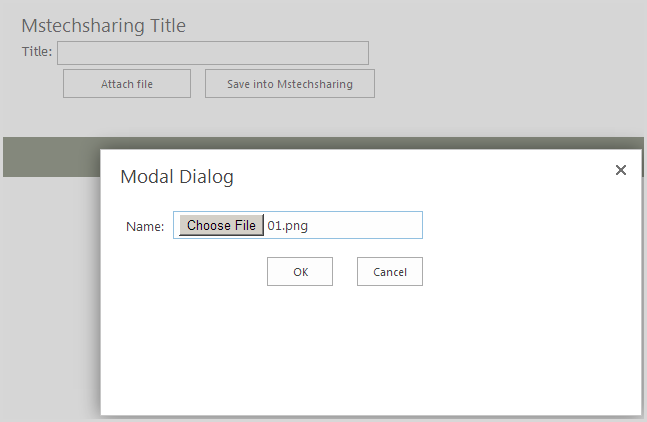
Now we upload file

Uploaded successful.

Go back to MstechsharingTemp we see file was attached to list item

Continue add new item and click button Save

Go back Mstechsharing list we see item and attachment file is created

Login to another user, we will see item was created in MstechsharingTemp list

So, you can create item and attach file similar at above steps.
Thanks.

Wednesday, October 9, 2013

Find Number of Users Currently Logged on to a SharePoint Site (SP 2013 Online)

Find Number of Users Currently Logged on to a SharePoint 2013 Online using SPServices

Create sharepoint list with Name is WhoIsOnline.
Change Title to LastTimeUpdate. Create column user and group is UserName then input all user in your site collection to list (Note: LastTimeUpdate you can input text "Wed, 09 Oct 2013 08:40:48 GMT")

Download jquery-1.4.2.js and jquery.SPServices-0.6.2.min.js
Go to Settings >> Site contents >> Open Style Library >> Create new folder is MyJS

Then upload jquery-1.4.2.js and jquery.SPServices-0.6.2.min.js to MyJS folder (remember check in and publish your JS)

Now Open Sharepoint designer to connect to sharepoint 2013 online

Open seattle.html to code SPServices

Copy and paste this code before  <!--[if gte mso 9]><xml> and after <!--SPM:<SharePoint:CssRegistration Name="Themable/corev15.css" runat="server"/>-->

Here is code
<!--Add javasript at here-->
        <script type="text/javascript" src="../../Style Library/MyJS/jquery-1.4.2.js">//<![CDATA[//]]>
        </script>
        <script type="text/javascript" src="../../Style Library/MyJS/jquery.SPServices-0.6.2.min.js">//<![CDATA[//]]>
        </script>
        <script type="text/javascript">//<![CDATA[
        $(document).ready(function () {
            window.setInterval(function () {
                GetListItems();
            }, 5000);
        });

        function GetListItems() {
            try {
                $().SPServices({
                    operation: "GetUserInfo",
                    async: false,
                    userLoginName: $().SPServices.SPGetCurrentUser(),
                    completefunc: function (xData, Status) {
                        $(xData.responseXML).find("User").each(function () {
                            //curUserId = $(this).attr("ID");
                            curUserName = $(this).attr("Name");
                            //curFullUserName = $(this).attr("ID") + ";#" + $(this).attr("Name");
                            $().SPServices({
                                operation: "GetListItems",
                                //webURL: "http://192.168.1.216:8800",
                                async: false,
                                listName: "WhoIsOnline",
                                CAMLViewFields: "<ViewFields><FieldRef Name='ID' /><FieldRef Name='Title' /><FieldRef Name='UserName' /><FieldRef Name='WhoIsOnline' /></ViewFields>",
                                CAMLQuery: "<Query><Where><Eq><FieldRef Name='UserName' /><Value Type='User'>" + curUserName + "</Value></Eq></Where></Query>",
                                completefunc: function (xData, Status) {
                                    //alert(xData.responseXML.xml);
                                    //$(xData.responseXML).find("z\\:row").each(function () {=>return undefied
                                    $(xData.responseXML).find("[nodeName=z:row]").each(function () {
                                        //var id = $(this).attr("ows_ID");
                                        var currentTime = new Date();                                      
                                        $().SPServices({
                                            operation: "UpdateListItems",
                                            listName: "WhoIsOnline",
                                            ID: $(this).attr("ows_ID"),
                                            valuepairs: [["Title", currentTime.toUTCString()]],
                                            debug: true,
                                            completefunc: null
                                        });
console.log(currentTime.toUTCString());
                                    });
                                }
                            });
                        });
                    }
                });
            }
            catch (e) { alert(e); }
        }
    //]]>
        </script>
Explain code
I use time to autorun update use login to my site collection. Get current user login then check the it with UserName in WhoIsOnline custom list if existing. update international time to Title (LastTimeUpdate)
Login with Hung Do Quoc and see the time before update

After auto update

Create new page and program to get user online with current international time - last update <= 20 second
Add CEWP to this page then paste this code to

Code here

​​<script type="text/javascript" src="/Style%20Library/MyJS/jquery-1.4.2.js"></script><script type="text/javascript" src="/Style%20Library/MyJS/jquery.SPServices-0.6.2.min.js"></script><script type="text/javascript">

    $(document).ready(function () {
        getUserOnline();
    });
    function getUserOnline() {
        try {
            $().SPServices({
                operation: "GetListItems",
                async: false,
                listName: "WhoIsOnline",
                CAMLViewFields: "<ViewFields><FieldRef Name='Title' /><FieldRef Name='UserName' /></ViewFields>",
                completefunc: function (xData, Status) {
                    var liHtml = "";
                    //$(xData.responseXML).find("z\\:row").each(function () {
                    $(xData.responseXML).find("[nodeName=z:row]").each(function () {
                        var lastTimeUpdate = new Date($(this).attr("ows_Title"));
                        var currentTimeFromServer = new Date();
                        console.log("Modified:" + lastTimeUpdate.toUTCString() + "- current: " + currentTimeFromServer.toUTCString());
                        // lastTimeUpdate
                        var lastTimeUpdateFullYear = parseInt(lastTimeUpdate.getFullYear());
                        var lastTimeUpdateMonth = parseInt(lastTimeUpdate.getMonth());
                        var lastTimeUpdateDate = parseInt(lastTimeUpdate.getDate());
                        var lastTimeUpdateHours = parseInt(lastTimeUpdate.getHours());
                        var lastTimeUpdateMinutes = parseInt(lastTimeUpdate.getMinutes());
                        var lastTimeUpdateSeconds = parseInt(lastTimeUpdate.getSeconds());
                        //currentTimeFromServer
                        var currentTimeFromServerFullYear = parseInt(currentTimeFromServer.getFullYear());
                        var currentTimeFromServerMonth = parseInt(currentTimeFromServer.getMonth());
                        var currentTimeFromServerDate = parseInt(currentTimeFromServer.getDate());
                        var currentTimeFromServerHours = parseInt(currentTimeFromServer.getHours());
                        var currentTimeFromServerMinutes = parseInt(currentTimeFromServer.getMinutes());
                        var currentTimeFromServerSeconds = parseInt(currentTimeFromServer.getSeconds());

                        var a = new Date(lastTimeUpdateFullYear, lastTimeUpdateMonth, lastTimeUpdateDate, lastTimeUpdateHours, lastTimeUpdateMinutes, lastTimeUpdateSeconds);
                        var b = new Date(currentTimeFromServerFullYear, currentTimeFromServerMonth, currentTimeFromServerDate, currentTimeFromServerHours, currentTimeFromServerMinutes, currentTimeFromServerSeconds);
                        if (b - a <= 20000) {
                            liHtml += ($(this).attr("ows_UserName")).split('#')[1] + "<br\>";
                        }
                    });
                    $("#useronline").html(liHtml);
                }
            });
        }
        catch (e) { alert(e); }
    }

    // 1000 which is millisecond for 1 second. Divide by this to get hours. (20.000 is valid)</script>
<div id="useronline">
</div>
Try to Login site with 3 users, Go back list WhoIsOnline you will see 3 users login (Modified: A few seconds ago <= 20 seconds with current time )

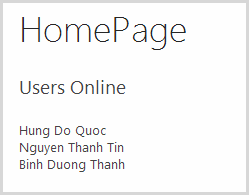
Go back your page you will see 3 users online

Note: I use the UTC time (international time). if you setting Regional settings in sharepoint, system still run correct. also you can apply this project for sharepoint server 2010, 2007....
Thanks.

Sunday, September 22, 2013

Building MVP Pattern

How to build MVP Pattern for sharepoint, download project at here
Section 1: Creating Solution, Project, Folder and class in folder

Create new solution in visual studio 2010 with name is MVPPatternInSharepoint

Right click to solution | Add new project | Sharepoint | Empty sharepoint project with name is MVPPatternInSharepoint.Web

Deploy as a farm solution

Right click to MVPPatternInSharepoint.Web project | Add new item| Visual Web Part with name is Login

Design User Interface as follows:

Source html:
<style type="text/css">
    .style1
    {
        width: 40%;
    }
</style>

<table class="style1">
    <tr>
        <td colspan="2" style="text-align: center">
            Welcome to mstechsharing.blogspot.com</td>
    </tr>
    <tr>
        <td>
            Username::</td>
        <td>
            <asp:TextBox ID="txtUserName" runat="server"></asp:TextBox>
        </td>
    </tr>
    <tr>
        <td>
            Password</td>
        <td>
            <asp:TextBox ID="txtPassword" runat="server"></asp:TextBox>
        </td>
    </tr>
    <tr>
        <td>
            &nbsp;</td>
        <td>
            <asp:Button ID="btnLogin" runat="server" onclick="btnLogin_Click"
                Text=" Login  " />
            <asp:Button ID="btnCancel" runat="server" Text=" Cancel" />
        </td>
    </tr>
</table>

Right click to solution | Add new project | Visual C# | Windowns | Class Library with name is MVPPatternInSharepoint.Presentation

Delete Class1.cs then Add new 2 folders is IView and Presenter

Right click to IView folder | Add | Class with name is ILoginView

Right click to Presenter folder | Add | Class with name is LoginPresenter

Right click to solution | Add new project | Visual C# | Windowns | Class Library with name is MVPPatternInSharepoint.Contract

Delete Class1.cs then Add new  folders is LoginDTO

Right click to DTO folder | Add | Class with name is LoginDTO

Right click to solution | Add new project | Visual C# | Windowns | Class Library with name is MVPPatternInSharepoint.Model
Delete Class1.cs then Add new  folders is Controllers
Right click to Controllers folder | Add | Class with name is LoginController
Right click to solution | Add new project | Visual C# | Windowns | Class Library with name is MVPPatternInSharepoint.Data
Delete Class1.cs then Add new  folders is SPRepository
Right click to SPRepository folder | Add | Class with name is LoginRepository
Right click to solution | Add new project | Visual C# | Windowns | Class Library with name is MVPPatternInSharepoint.Common then delete Class1.cs  then right click to MVPPatternInSharepoint.Common | Add | Class with name is Common
Note:
Declare Publish for Common class (public class Common), LoginDTO (public class LoginDTO), LoginRepository (public class LoginRepository), LoginController (public class LoginController
), ILoginView (public interface ILoginView), LoginPresenter (public class LoginPresenter)
Then Build your solution
Section 2: Coding follow your functionality, we have login form with 2 textbox and 1 button
Open LoginDTO.cs in project MVPPatternInSharepoint.Contract
Paste this code as follows:
public class LoginDTO
    {
        #region Properties
        public string UserName { get; set; }
        public string Password { get; set; }
        #endregion

        #region Events
        public event EventHandler Login;
        #endregion
    }
The user interface as follows
In project MVPPatternInSharepoint.Presentation, open ILoginView.cs
Paste this code as follows:
public interface ILoginView
    {
        #region Properties
        string UserName { get; set; }
        string Password { get; set; }
        #endregion

        #region Events
        event EventHandler Login;
        #endregion
    }
 The user interface
Build your solution
Open LoginUserControl.ascx.cs >> Add References to MVPPattern.Presentation.dll
Declare NameSpace
using MVPPatternInSharepoint.Presentation.IView;
using MVPPatternInSharepoint.Presentation.Presenter;
using Microsoft.SharePoint;
 declare Inherit to Interface ILoginView
Implement interface

Source code was generate as follows:

Go back to MVPPatternInSharepoint.Presentation
Add Reference to MVPPatternInSharepoint.Contract.dll and MVPPatternInSharepoint.Model.dll
Declare namespace
using MVPPatternInSharepoint.Presentation.IView;
using MVPPatternInSharepoint.Model.Controllers;
using MVPPatternInSharepoint.Contract.DTO;

Paste this code
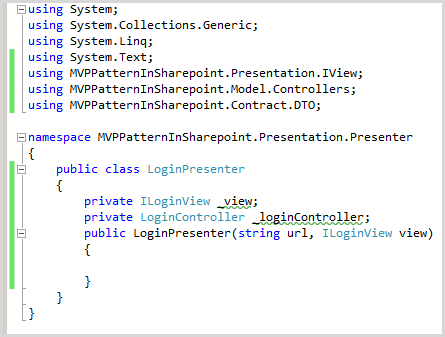
private ILoginView _view;
        private LoginController _loginController;
        public LoginPresenter(string url, ILoginView view)
        {

        }

User interface as follows
Build your solution
Go back MVPPatternInSharepoint.Web project, Open LoginUserControl.ascx.cs
Replace code in public partial class LoginUserControl : UserControl,ILoginView
 like this
Source code
using System;
using System.Web.UI;
using MVPPattern.Presentation.IView;
using MVPPattern.Presentation.Presenter;
using Microsoft.SharePoint;

namespace MVPPattern.Web.Login
{
    public partial class LoginUserControl : UserControl,ILoginView
    {
        protected void Page_Load(object sender, EventArgs e)
        {
            loginPresenter = new LoginPresenter(SPContext.Current.Web.Url,this);
        }
        LoginPresenter loginPresenter;
        protected void btnLogin_Click(object sender, EventArgs e)
        {
            Login(sender, e);
        }

        public event EventHandler Login;

        public string Password
        {
            get
            {
                return txtPassword.Text;
            }
            set
            {
                txtPassword.Text = value;
            }
        }

        public string UserName
        {
            get
            {
                return txtUserName.Text;
            }
            set
            {
                txtUserName.Text = value;
            }
        }
    }
}

Finish code in LoginUserControl.ascx.cs
Open LoginPresenter.cs like this
Open LoginController.cs, Add Reference to MVPPatternInSharepoint.Contract.dll and MVPPatternInSharepoint.Data.dll
Paste this code into public class LoginController
Source code:
using System;
using System.Collections.Generic;
using System.Linq;
using System.Text;
using MVPPatternInSharepoint.Contract.DTO;
using MVPPatternInSharepoint.Data.SPRepository;

namespace MVPPatternInSharepoint.Model.Controllers
{
    public class LoginController
    {
        private string _url;
        public LoginController(string url)
        {
            _url = url;
        }
        public void Login(LoginDTO loginDTO)
        {
           
        }
    }
}


Build your Solution
Go back MVPPatternInSharepoint.Presentation project, Open LoginPresenter.cs >>replace this code in public class LoginPresenter Like this
Source code:
using System;
using System.Collections.Generic;
using System.Linq;
using System.Text;
using MVPPatternInSharepoint.Presentation.IView;
using MVPPatternInSharepoint.Model.Controllers;
using MVPPatternInSharepoint.Contract.DTO;

namespace MVPPatternInSharepoint.Presentation.Presenter
{
    public class LoginPresenter
    {
        private ILoginView _view;
        private LoginController _loginController;
        public LoginPresenter(string url, ILoginView view)
        {
            _view = view;
            _loginController = new LoginController(url);
            _view.Login += new EventHandler(_view_Login);
        }

        void _view_Login(object sender, EventArgs e)
        {
            LoginDTO loginDTO = new LoginDTO();
            loginDTO.UserName = _view.UserName;
            loginDTO.Password = _view.Password;
            _loginController.Login(loginDTO);
        }
    }
}

Finish coding in MVPPatternInSharepoint.Presentation project. Build solution
Open project MVPPattern.Data >> add references to MVPPatternInSharepoint.Contract.dll
Declare namespace
using MVPPatternInSharepoint.Contract.DTO;

Paste this code into public class LoginRepository
Source code
using System;
using System.Collections.Generic;
using System.Linq;
using System.Text;
using MVPPatternInSharepoint.Contract.DTO;

namespace MVPPatternInSharepoint.Data.SPRepository
{
    public class LoginRepository
    {
        string _url;
        public LoginRepository(string url)
        {
            _url = url;
        }
        public void Login(LoginDTO loginDTO)
        {
            string userName = loginDTO.UserName;
            string password = loginDTO.Password;
        }
    }
}

Finish coding in MVPPatternInSharepoint.Data project. In Login method, you can get UserName and Password to do something (Select, Insert ….). Build your solution
Go back MVPPatternInSharepoint.Model project, open LoginController.cs, paste this code into method Login
Build your solution. Finish coding in MVPPatternInSharepoint.Model project
Section 3: Add dll of Class Library into Package and deploy webpart
In MVPPatternInSharepoint.Web project double click to Package.package and click to Advanced
Click button Add >> Add Assembly from Project output
Source project choose “MVPPatternInSharepoint.Presentation” and click to “click here to add new item” button
   

Namespace is “MVPPatternInSharepoint.Presentation.IView”
Assembly is “MVPPatternInSharepoint.Presentation”
Continue !!!!
Click button Add >> Add Assembly from Project output.  Source project choose “MVPPatternInSharepoint.Contract” and click to “click here to add new item” button
   

Namespace is “MVPPatternInSharepoint.Contract.DTO”
Assembly is “MVPPatternInSharepoint.Contract”
Continue !!!!
Click button Add >> Add Assembly from Project output.  Source project choose “MVPPatternInSharepoint.Model” and click to “click here to add new item” button
Namespace is “MVPPatternInSharepoint.Model.Controllers”
Assembly is “MVPPatternInSharepoint.Model”
Continue !!!!
Click button Add >> Add Assembly from Project output.  Source project choose “MVPPatternInSharepoint.Data” and click to “click here to add new item” button
Namespace is “MVPPatternInSharepoint.Data.SPRepository”
Assembly is “MVPPatternInSharepoint.Data”
Continue !!!!
Click button Add >> Add Assembly from Project output.  Source project choose “MVPPatternInSharepoint.Common” and click to “click here to add new item” button
Namespace is “MVPPatternInSharepoint.Common”
Assembly is “MVPPatternInSharepoint.Common”
Build your solution
Deploy “MVPPatternInSharepoint.Web” project but we have error “The primary reference "MVPPatternInSharepoint.Presentation" could not be resolved because it has an indirect dependency on the .NET Framework assembly "mscorlib, Version=4.0.0.0, Culture=neutral, PublicKeyToken=b77a5c561934e089" which has a higher version "4.0.0.0" than the version "2.0.0.0" in the current target framework.
 “
I search on google I check Target Framework of MVPPatternInSharepoint.Web is 3.5
But Class Library have Target Framework, so we change it to 3.5
For MVPPatternInSharepoint.Common
We do it for MVPPatternInSharepoint.Contract, MVPPatternInSharepoint.Data, MVPPatternInSharepoint.Model, MVPPatternInSharepoint.Presentation
Then Build solution but we continue get error “Error       2              Assembly generation failed -- Referenced assembly 'MVPPatternInSharepoint.Presentation' does not have a strong name   MVPPatternInSharepoint.Web”
Reason is: Class library don’t have Strong name, we will create for them
For MVPPatternInSharepoint.Common
Right click to MVPPatternInSharepoint.Common >> Signing >> Check to Sign the assembly >> choose New
We do it for MVPPatternInSharepoint.Contract, MVPPatternInSharepoint.Data, MVPPatternInSharepoint.Model, MVPPatternInSharepoint.Presentation
Then Build solution again and get successful
Deploy project sharepoint “MVPPatternInSharepoint.Web”

Add Webpart to sharepoint page successful