ĐÀO TẠO DOANH NGHIỆP : SỞ KHOA HỌC CÔNG NGHỆ TỈNH ĐỒNG NAI

ENTERPRISE TRAINING: DONG NAI DEPARTMENT OF SCIENCE AND TECHNOLOGY.

HÌNH ẢNH TẬP HUẤN LỚP SHAREPOINT WORKFLOW VÀ KIẾN TRÚC SHAREPOINT

PHOTOS OF SHAREPOINT WORKFLOW AND ARCHITECTURE CLASS.

HÌNH ẢNH TẬP HUẤN LỚP SHAREPOINT WORKFLOW VÀ KIẾN TRÚC SHAREPOINT

PHOTOS OF SHAREPOINT WORKFLOW AND ARCHITECTURE CLASS.

Saturday, May 19, 2012

Populating InfoPath Drop Down List Box with SharePoint List Lookup Data

Populate InfoPath drop-down programmatically from Sharepoint List Lookup data


  • Article 1: How to code C-Sharp on infopath form 2010
  • Article 2: How to set the value of a Field in Infopath
  • Article 3: How to set value of a field from sharepoint list
  • Article 4: Populating InfoPath Drop Down List Box with SharePoint List Lookup Data 
  • Article 5Populating InfoPath Drop Down List Box with SharePoint Fields Choice
  • Article 6: Deploy an InfoPath 2010 Form with Managed Code to a Browser Enabled Sharepoint Document Library

Download infopath project at here

Designing  and coding infopath

Open Infopath | Design user interface follows as
Go to File => Form Options => Programming
Form template code language: C#
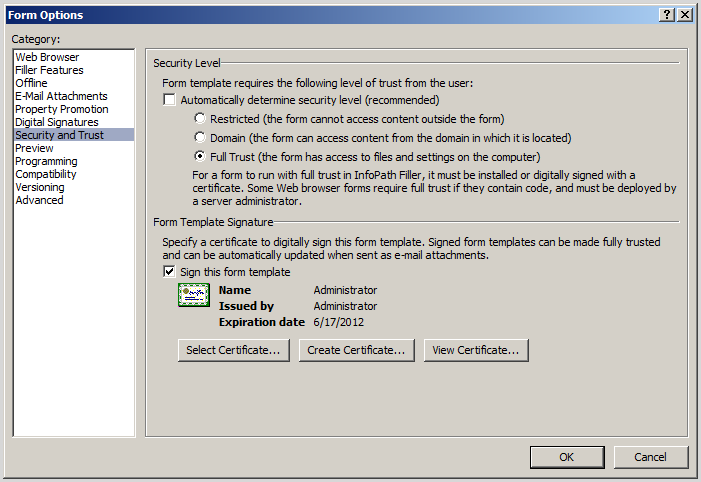
Go to File => Form Options => Security and Trust
Configure follows as:
Go to Tab Developer | click to Loading Event ribbon
Right click to myFields | Add
Name: Countries
Type: Group
Check to Repeating
Right click to Countries | Add
Name: Displayname
Continue Right click to Countries | Add then input Name: Value
Right click to DropdownList “Country” | Drop-Down List Box Properties…
At List box choices------------------------------
Check to radio button “Get choice from fields in this from”, then click to Entries follows as
Select value follows as
Open your  site collection | Create new list Countries then add new some Item
Add reference to Microsoft.sharepoint.dll
Using  using Microsoft.SharePoint;
Add method AddCountries(); to FormEvents_Loading

Paste this method  to below FormEvents_Loading method public void AddCountries()
using Microsoft.Office.InfoPath;
using System;
using System.Xml;
using System.Xml.XPath;
using Microsoft.SharePoint;

namespace PopulateDropdownListFromCode
{
    public partial class FormCode
    {       
        // NOTE: The following procedure is required by Microsoft InfoPath.
        // It can be modified using Microsoft InfoPath.
        public void InternalStartup()
        {
            EventManager.FormEvents.Loading += new LoadingEventHandler(FormEvents_Loading);
        }

        public void FormEvents_Loading(object sender, LoadingEventArgs e)
        {
            //Populate country drop down
            AddCountries();
        }

        public void AddCountries()
        {
            try
            {
                SPSite site = new SPSite("http://win-67038mbkel7");
                SPWeb web = site.OpenWeb();
                SPList list = web.Lists["Countries"];
                SPListItemCollection listitems = list.Items;
                XPathNavigator nav = this.CreateNavigator().
                    SelectSingleNode("/my:myFields/my:Countries", this.NamespaceManager);// Note: "/my:myFields/my:Countries" => Group Countries
                foreach (SPListItem li in listitems)
                {
                    XPathNavigator newNode = null;
                    newNode = nav.Clone();
                    newNode.SelectSingleNode("/my:myFields/my:Countries/my:Displayname",
                        this.NamespaceManager).SetValue(li["Title"].ToString());
                    newNode.SelectSingleNode("/my:myFields/my:Countries/my:Value",
                        this.NamespaceManager).SetValue(li["Title"].ToString());
                    nav.InsertAfter(newNode);
                    newNode = null;
                }
                nav.DeleteSelf();
                nav = null;
            }
            catch
            {
            }
        }
    }
}

Build project then click F5, result as below


Deploy an InfoPath 2010 Form with Managed Code to a Browser Enabled Sharepoint Document Library

Friday, May 18, 2012

How to set value of a field from sharepoint list

Download infopath form coding at here

Designing  and coding infopath


  • Article 1: How to code C-Sharp on infopath form 2010
  • Article 2: How to set the value of a Field in Infopath
  • Article 3: How to set value of a field from sharepoint list
  • Article 4: Populating InfoPath Drop Down List Box with SharePoint List Lookup Data 
  • Article 5Populating InfoPath Drop Down List Box with SharePoint Fields Choice
  • Article 6: Deploy an InfoPath 2010 Form with Managed Code to a Browser Enabled Sharepoint Document Library

In article How to set the value of a Field in Infopath we learn how to code basic infopath, now we continue code to get data from sharepoint list then display to fields of infopath form

Open Infopath | Design user interface follows as
Go to File => Form Options => Programming
Form template code language: C#
Go to File => Form Options => Security and Trust
Configure follows as:
Go to Tab Developer | click to Loading Event ribbon
Visual studio open automatically with Method FormEvents_Loading
Add reference to Microsoft.sharepoint.dll
 Using  using Microsoft.SharePoint;
Paste this segment code into Method FormEvents_Loading

using Microsoft.Office.InfoPath;
using System;
using System.Xml;
using System.Xml.XPath;
using Microsoft.SharePoint;

namespace CodeInfopathByMSTechSharing
{
    public partial class FormCode
    {       
        // NOTE: The following procedure is required by Microsoft InfoPath.
        // It can be modified using Microsoft InfoPath.
        public void InternalStartup()
        {
            EventManager.FormEvents.Loading += new LoadingEventHandler(FormEvents_Loading);
        }

        public void FormEvents_Loading(object sender, LoadingEventArgs e)
        {
            string title = "";
            string startDate = "";
            string complete = "";
           
            SPSite spSite = new SPSite("http://win-67038mbkel7");
            using (SPWeb spWeb = spSite.OpenWeb())
            {               
                SPList spList = spWeb.Lists["Tasks"];
                //SPList spList = SPContext.Current.List;
                //int id = Convert.ToInt32(System.Web.HttpContext.Current.Request.QueryString["ID"]);
                SPQuery spQuery = new SPQuery();
                SPListItemCollection collection = spList.GetItems(spQuery);
                SPListItem spListItem = collection.GetItemById(3);
                title = spListItem["Title"].ToString();               
                startDate = spListItem["StartDate"].ToString();
                complete = spListItem["PercentComplete"].ToString();                
                // how to publish infopath from code to sharepoint
                //http://platinumdogs.me/2007/12/17/deploy-an-infopath-2007-form-with-managed-code-to-a-browser-enabled-sharepoint-document-library/
            }
            XPathNavigator xPathNavigatorTitle = this.MainDataSource.CreateNavigator()
            .SelectSingleNode("/my:myFields/my:txtTitle", this.NamespaceManager);
            xPathNavigatorTitle.SetValue(title);
            XPathNavigator xPathNavigatorDueDate = this.MainDataSource.CreateNavigator()
            .SelectSingleNode("/my:myFields/my:txtStartDate", this.NamespaceManager);
            xPathNavigatorDueDate.SetValue(startDate);
            XPathNavigator xPathNavigatorComplete = this.MainDataSource.CreateNavigator()
            .SelectSingleNode("/my:myFields/my:txtPercentComplete", this.NamespaceManager);
            xPathNavigatorComplete.SetValue(complete);
        }
    }
}

Deploy an InfoPath 2010 Form with Managed Code to a Browser Enabled Sharepoint Document Library

Go to File => Publish => Click to Sharepoint Server
Input URL to sharepoint site then click next
Click Next
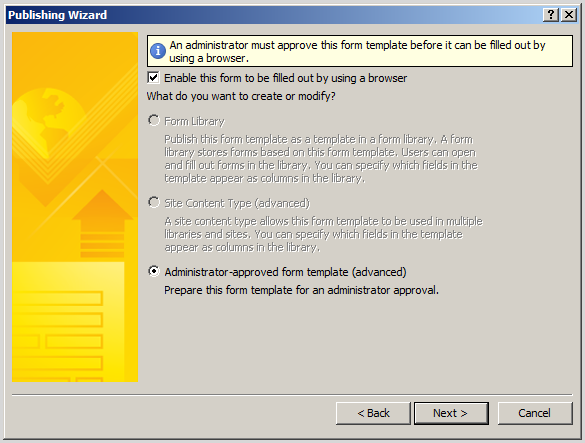
Click Browse… (Publish infopath form with administrator permission)
Save infopath form
Add Fields


Click Publish

Upload the template

Go to Central Admin => General Application Settings => Infopath Form Services => click to Manage form templates

Click to Upload form template

Browse to infopath form which publish in your machine

Click to Upload

Upload successful

Activate the form template on a Site Collection

Back to Manage form template screen | click to your infopath form | Active to a site collection

Choose your site collection

Associate the Form Template with a Form Library

Go to your site collection | create a new Document Library | input name: My Documents

On My Documents  =>  Document Library Settings => Advanced Settings => at Allow management of content types? : Yes

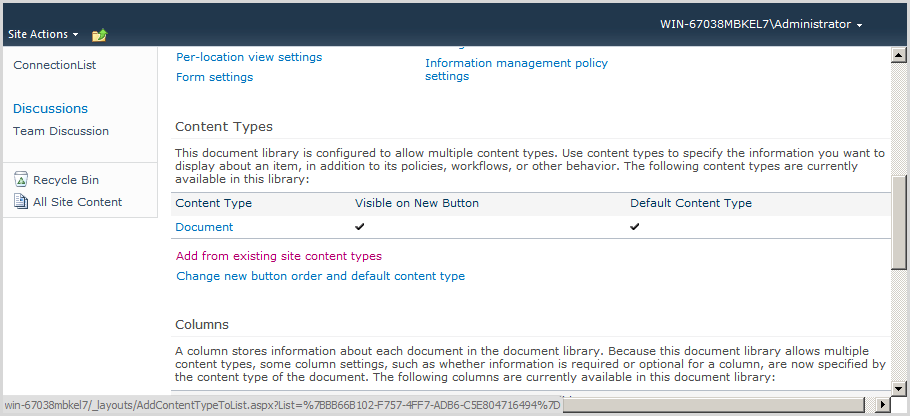
Click to “Add from existing site content types” link

Add content type (Infopath content type) to your library

Infopath content type is added successful

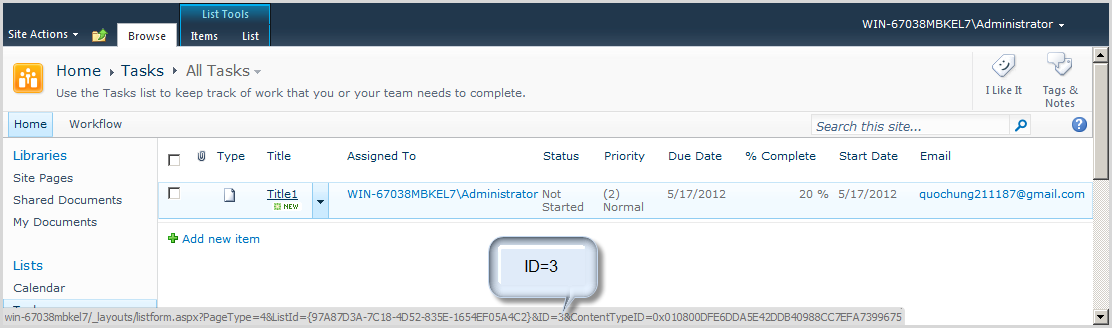
Go to Tasks list | try add new item

Go back My Documents Library | Tab Documents | New Document | CodeInfopathByMSTechSharingPublish

You see result at (Data from Tasks List is got and set to control infopath)

You can save this form
Result as

How to set the value of a Field in Infopath

How to set the value of a Field in Infopath

  • Article 1: How to code C-Sharp on infopath form 2010
  • Article 2: How to set the value of a Field in Infopath
  • Article 3: How to set value of a field from sharepoint list
  • Article 4: Populating InfoPath Drop Down List Box with SharePoint List Lookup Data 
  • Article 5Populating InfoPath Drop Down List Box with SharePoint Fields Choice
  • Article 6: Deploy an InfoPath 2010 Form with Managed Code to a Browser Enabled Sharepoint Document Library


Download infopath form coding at here
Open infopath | Design UI follows as
Right click to button | Edit Form Code…
Error appear
How to solve
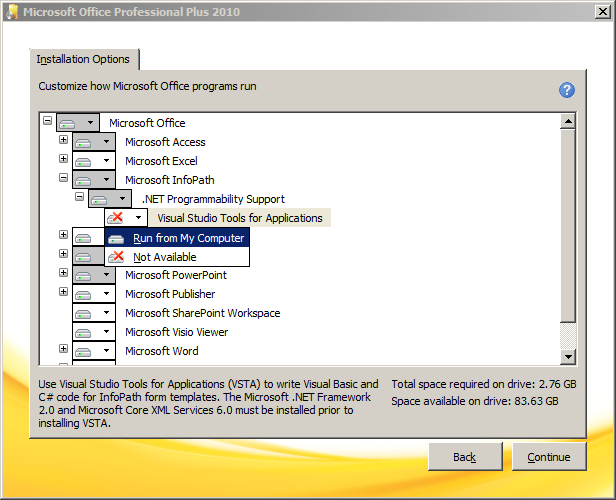
Go to control panel | Uninstall program | right click to Microsoft office | change | choose Add or Remove Features
In Microsoft Infopath | .Net Programmability Support | at visual studio tools for applications: Run from my computer
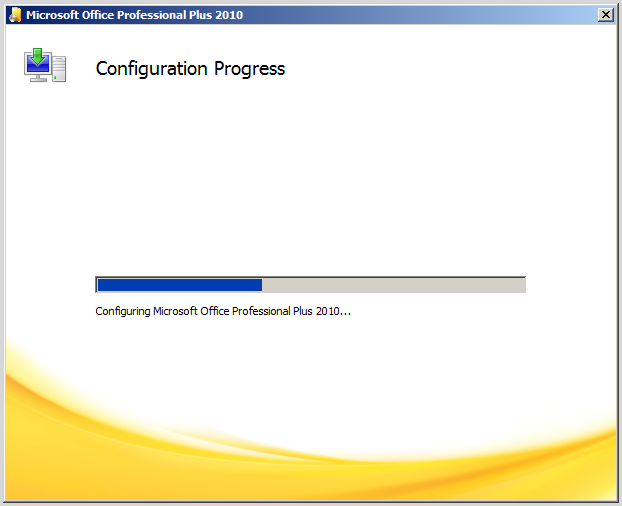
Waiting configuration progress
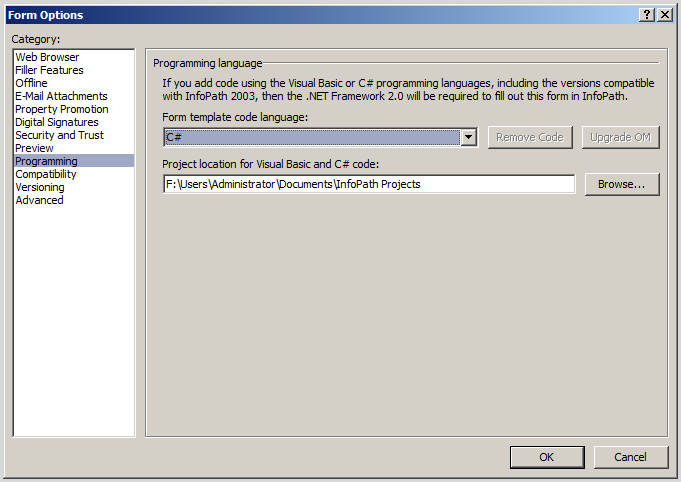
Go back to infopath form | File | Form Options
At  Programming
Form template code language: C#
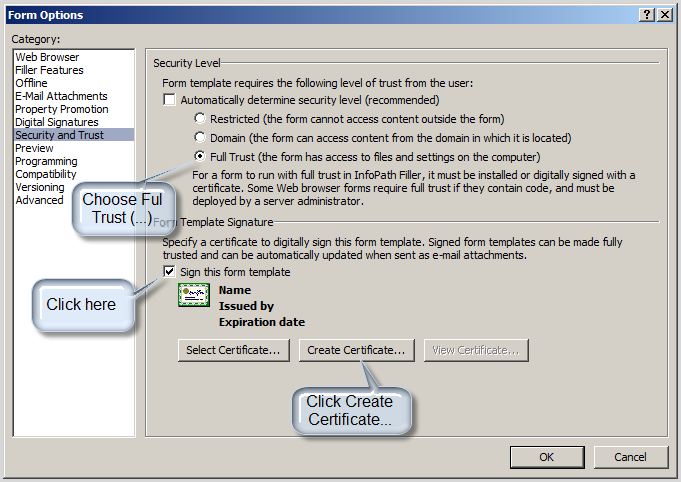
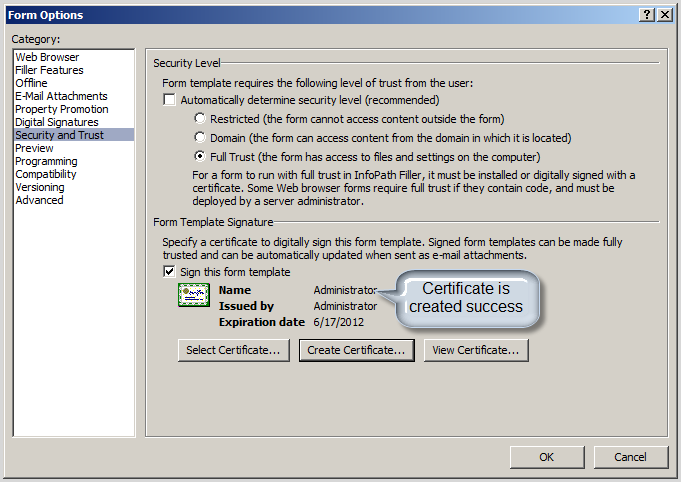
At Security and Trust
Configure follows as:
After click Create Certificate … result as certificate is created with administrator
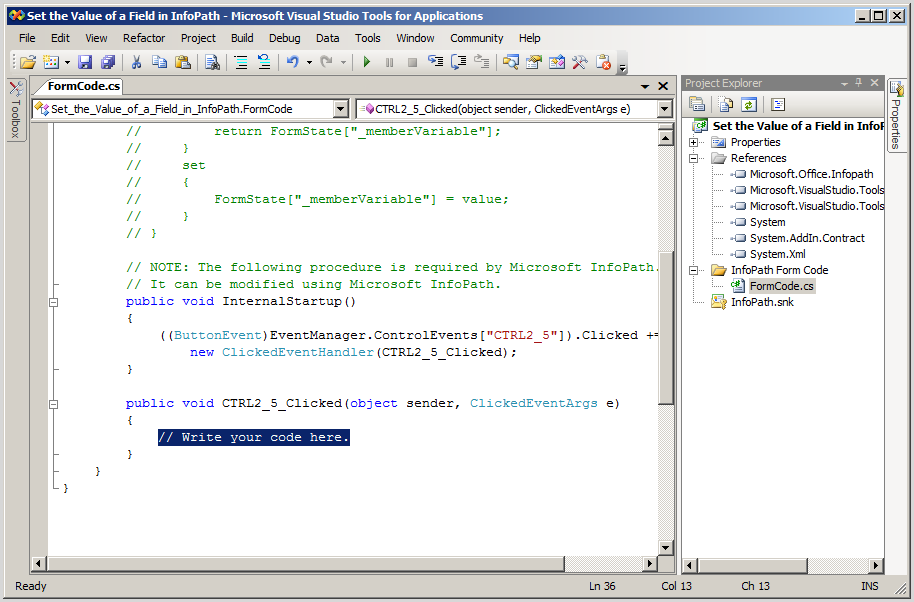
Right click to button | Edit Form Code… again, you will see Visual studio open automatically with Method ButtonID_Clicked
Paste this segment code into Method ButtonID_Clicked
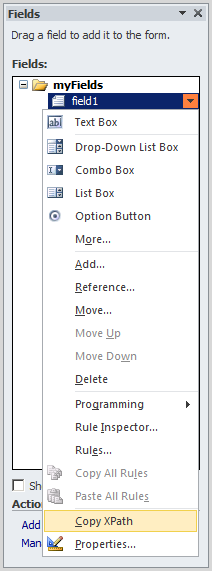
Go back to infopath form | right click to field1 | Copy XPath
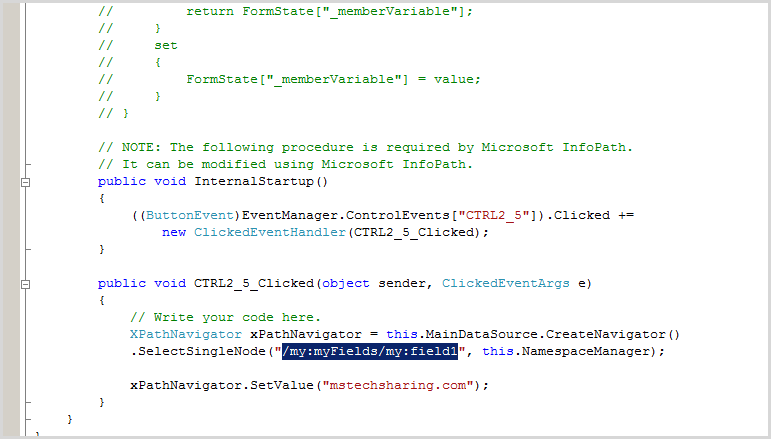
Go back to visual studio then paste “/my:YourTextBox”

public void CTRL2_5_Clicked(object sender, ClickedEventArgs e)
        {
            // Write your code here.
            XPathNavigator xPathNavigator = this.MainDataSource.CreateNavigator()
            .SelectSingleNode("/my:myFields/my:field1", this.NamespaceManager);

            xPathNavigator.SetValue("mstechsharing.com");
        }

Go back to Infopath form | Click F5 | click to button | value will be set to TextBox