


Objectives: ü Hiểu về attribute trong ứng dụng .NET ü Built-in attribute như : Obsolete, Conditional, DllImport, Description ü Tạo và sử dụng attribute bằng C# trong ứng dụng .NET ü Đọc Metadata của assembly như: attribute, version, methods .... |
EXERCISES: Tạo mới Solution tên Exercise05Soln Exercise 01 : Thêm Class Library vào Solution tên là BasicLibrary · Đổi tên Class1.cs thành DataTableProvider.cs · Mở class DataTableProvider và khai báo những phương thức GetDataTable(chỉ trả về DataTable) o Overload đầu tiên: khai báo phương thức GetDataTable không có tham số và áp dụng attribute Obsolete không có tham số o Overload thứ hai: khai báo phương thức GetDataTable với 2 tham số và trả ra DataTable và áp dụng attribute Obsolete với tham số là : “This is obsolete method” o Overload thứ ba: khai báo phương thức GetDataTable với 2 tham số là mảng kiểu string và object và trả ra DataTable (không áp dụng attribute Obsolete) namespace BasicLibrary { public class DataTableProvider { [Obsolete()] public DataTable GetDataTable() { return new DataTable(); ; } [Obsolete("This is obsolete method")] public DataTable GetDataTable(string parameterName, object parameterObject) { return new DataTable(); } public DataTable GetDataTable(string[] parameterName, object[] parameterObject) { return new DataTable(); } } } · Build Class Library thành BasicLibrary.dll Exercise 02 : Thêm mới window Application tên UseLibrary o Add Reference đến BasicLibrary.dll o Using: using BasicLibrary; o Thêm 3 Button vào Form1 o Khai báo code trong sự kiện Click của 3 button o Build chương trình ….? Exercise 03 : Thêm mới window Application tên SymbolProject o Thêm 1 Class tên SymbolClass o using System.Windows.Forms; o Khai báo phương thức § Tên là ShowMessageBox § Hiển thị chuỗi “Debug” sử dụng phương thức MessageBox.Show("Debug"); § Áp dụng attibute Conditional với ký hiệu DEBUG public class SymbolClass { [Conditional("DEBUG")] public void ShowMessageBox() { MessageBox.Show("Debug"); } } o Thêm Button vào Form1 § Khai báo code trong sự kiện của button và gọi phương thức ShowMessageBox o Chọn chế độ Debug trên toolbar và nhấn F5 § Kiểm tra điều gì xảy ra nếu bạn click button o Chọn chế độ Release trên toolbar và nhấn F5 § Kiểm tra điều gì xảy ra nếu bạn click button Exercise 04 : Thêm mới window Application tên CustomSymbolProject o Chọn chế độ Release trên toolbar o Chọn project CustomSymbolProject | R-Click | Properties | Build Tab o Nhập vào Vietnamese trong Conditional compliant symbol 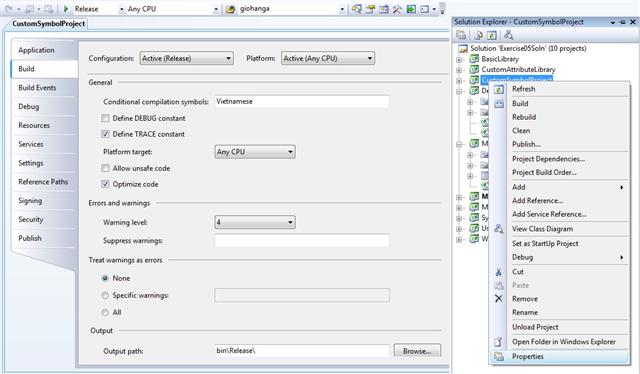 o Thêm 1 Class tên SymbolClass o using System.Windows.Forms; o Khai báo phương thức thứ nhất : § Tên là ShowMessageBoxByVietnameseMode § Hiển thị chuỗi “Debug” sử dụng phương thức MessageBox.Show("Debug"); § Áp dụng attibute Conditional với ký hiệu Vietnamese o Khai báo phương thức thứ hai : § Tên là ShowMessageBoxByDebugMode § Hiển thị chuỗi “Debug” sử dụng phương thức MessageBox.Show("Debug"); § Áp dụng attibute Conditional với ký hiệu DEBUG namespace CustomSymbolProject { public class SymbolClass { [Conditional("Vietnamese")] public void ShowMessageBoxByVietnameseMode() { MessageBox.Show("Debug"); } [Conditional("DEBUG")] public void ShowMessageBoxByDebugMode() { MessageBox.Show("Debug"); } } } o Thêm button đầu tiên vào Form1 § Khai báo code trong sự kiện của button1 và gọi phương thức ShowMessageBoxByVietnameseMode private void button1_Click(object sender, EventArgs e) { SymbolClass symbolClass = new SymbolClass(); symbolClass.ShowMessageBoxByVietnameseMode(); } § o Thêm button thứ 2 vào Form1 § Khai báo code trong sự kiện của button2 và gọi phương thức ShowMessageBoxByDebugMode private void button2_Click(object sender, EventArgs e) { SymbolClass symbolClass = new SymbolClass(); symbolClass.ShowMessageBoxByDebugMode(); } o Chọn chế độ Debug trên toolbar và nhấn F5 § Kiểm tra thấy gì xảy ra khi nhấn 2 button o Chọn chế độ Release trên toolbar và nhấn F5 § Kiểm tra thấy gì xảy ra khi nhấn 2 button Exercise 05 : Thêm mới window Application tên WindowsAPI o Thêm button vào Form1 tên btnShow o Khai báo code trong sự kiện của btnShow o Hiển thị MessageBox của hệ điều hành sử dụng attribute DllImport private void btnShow_Click(object sender, EventArgs e) { ShowMessage(); } private void ShowMessage() { MessageBox(0, "xin chao", "quoc hung", 0); } [DllImport("User32.dll")] internal static extern int MessageBox(int parent, string message, string caption, int type); Exercise 06 : Thêm mới Class Library tên Developer o Đổi tên Class1.cs thành Author.cs o Khai báo using System.Runtime.InteropServices; o Trên Class khai báo: [AttributeUsage(AttributeTargets.All, AllowMultiple = true)] o Khai báo biến private tên authorName kiểu string, giá trị mặc định là “Đỗ Quốc Hùng” o Khai báo sau đó public constructor thứ 1 không có tham số o Khai báo sau đó public constructor thứ 2 với tham số là name và gán authorName=name; namespace Developer { [AttributeUsage(AttributeTargets.All, AllowMultiple = true)] public class Author:Attribute { private string authorName = "Đỗ Quốc Hùng"; private string authorTask = "Editor"; public Author() { } public Author(string name) { authorName = name; } public Author(string name,string task) { authorName = name; authorTask = task; } } } o Build Class Library thành Developer.dll Exercise 07 : Thêm mới Class Library tên CustomAttributeLibrary o Đổi tên Class1.cs thành DataTableProvider.cs o Khai báo using System.Runtime.InteropServices; o Trên Class khai báo: [AttributeUsage(AttributeTargets.All, AllowMultiple = true)] o Khai báo biến private tên authorName kiểu string, giá trị mặc định là “Đỗ Quốc Hùng” o Khai báo sau đó public constructor thứ 1 không có tham số o Khai báo sau đó public constructor thứ 2 với tham số là name và gán authorName=name; namespace Developer { [Author()] public class DataTableProvider { [Author()] public DataTable GetDataTable() { return new DataTable(); } [Author("Quoc Hung")] public DataTable GetDataTable(string parameterName,object parameterObject) { return new DataTable(); } [Author("Quoc Hung","Developer")] public DataTable GetDataTable(string[] parameterName, object[] parameterObject) { return new DataTable(); } } } o Build Class Library thành CustomAttributeLibrary.dll Exercise 08 : Tiếp tục với Developer Project o Thêm 1 Class mới tên là Modifier.cs o Khai báo using System.Runtime.InteropServices; o Khai báo [AttributeUsage(AttributeTargets.Method, AllowMultiple = true)] o Khai báo biến private tên modifierName kiểu string, giá trị mặc định là “Đỗ Quốc Hùng Modifier” o Khai báo sau đó public constructor thứ 1 không có tham số o Khai báo sau đó public constructor thứ 2 với tham số là name và gán modifierName =name; namespace Developer { [AttributeUsage(AttributeTargets.Method,AllowMultiple=false)] public class Modifier:Attribute { private string modifierName = "HKG Informatics Education Center"; public Modifier() { } public Modifier(string name) { modifierName = name; } } } o Build Class Library thành Developer.dll Exercise 09 : Tiếp tục với CustomAttributeLibrary Project o Thêm 1 Class mới tên là DataProvider.cs o Add Reference đến Developer.dll o Khai báo attribute Modifier không có tham số trên Class Name [Modifier()] public class DataProvider { } o Build Class Library CustomAttributeLibrary o Kiểm tra có lỗi gì khi sử dụng attribute Modifier trên Class Exercise 10 : Tiếp tục với CustomAttributeLibrary Project o Mở DataProvider và khai báo phương thức thứ nhất(trả ra số bất kỳ) o ExecuteNonQuery không tham số và áp dụng attribute Modifier không có tham số [Modifier()] public int ExecuteNonQuery() { return 0; } Exercise 11 : Tiếp tục với CustomAttributeLibrary Project o Mở DataProvider và khai báo phương thức thứ hai(trả ra số bất kỳ) o ExecuteNonQuery với 2 tham và áp dụng attribute Modifier có tham số là tên của bạn [Modifier("Quoc Hung")] public int ExecuteNonQuery(string parameterName, object parameterObject) { return 1; } o Build Class Library CustomAttributeLibrary o Kiểm tra có lỗi gì khi thêm attribute Modifier lần thứ 2 trên method [Modifier("Quoc Hung")] //[Modifier("Quoc Hung")] //error public int ExecuteNonQuery(string parameterName, object parameterObject) { return 1; } Exercise 12 : Thêm mới Window Application project tên MetaDataProject o Add Reference đến Developer.dll o Thêm ListBox tới Form1 o Thêm Label tới Form1 o Khai báo 1 vài thông tin trong file AssemblyInfo.cs của project Developer trước đó phải using namespace using Developer; o [assembly:Author()] o Thêm Button thứ nhất tới Form1 o Trong Project MetaDataProject using Developer; o Khai báo code trong sụ kiện Click để hiển thị custom attribute của Developer lên listBox1 private void button1_Click(object sender, EventArgs e) { Assembly assembly = Assembly.Load("Developer"); label1.Text = assembly.FullName;//dùngđểlấy version của dll Attribute[] attribute = Attribute.GetCustomAttributes(assembly); foreach (Attribute obj in attribute) { listBox1.Items.Add(obj); } } Exercise 13 : Thêm mới Window Application project tên MetaDataProjectInForm o using System.Reflection; o Thêm ListBox tới Form1 o Thêm Button thứ nhất tới Form1 o Khai báo code trong sụ kiện Click để hiển thị attribute của Form1 lên listBox1 namespace MetaDataProjectInForm { public partial class Form1 : Form { public Form1() { InitializeComponent(); } private void button1_Click(object sender, EventArgs e) { Assembly assembly = Assembly.GetExecutingAssembly(); Type type = assembly.GetType("MetaDataProjectInForm.Form1");//namespace.class Attribute[] attrbute = Attribute.GetCustomAttributes(type); foreach (Attribute item in attrbute) { listBox1.Items.Add(item); } } } } Exercise 13 : Thêm mới Window Application project tên MetaDataProjectImage (đọc image được nhúng vào dll) o Thêm folder Image(tùy ý) vào MetaDataProjectImage project tên o Copy 1 tấm hình bỏ vào folder Image o Click phải vào hình | Properties | Build Action : Embedded Resource  o using System.Reflection; o Thêm PictureBox tới Form1 o Thêm Button thứ nhất tới Form1 o Khai báo code trong sụ kiện Click để hiển thị hình đã được nhúng vào lên PictureBox private void button1_Click(object sender, EventArgs e) { try { //before we must declare properties of laptop.png => Build Action chon Embedded Resource Assembly assembly = Assembly.GetExecutingAssembly(); Stream imageStream = assembly.GetManifestResourceStream("MetaDataProjectImage.Image.laptop.png"); //MetaDataProjectImage.Image.laptop.png (tên project.tên folder.tên hinh) pictureBox1.Image = new Bitmap(imageStream); } catch (Exception) { throw; } } |
